How ClipBot works

From a 4-hour stream to clips worth posting — while you sleep.

Follow one stream from “Go live” to the clip new viewers find tomorrow. No uploads, no scrubbing, no editing.

1-minute overview
The life of a stream

One night of streaming, told by ClipBot

Here's exactly what happens between “Go live” and “Posted”.

  1. 9:58 PM

    You go live — and just stream.

    No bots to add to chat, no software running on your PC. Once you've logged in to ClipBot with Twitch, AutoVod quietly watches for your next past broadcast.

    The only setting that matters: Store past broadcasts turned on in Twitch.

    LIVE4:12:08 312

    nova_rae NO WAY 😂

    tiltedtom CLIP IT

    k1ngpin that was insane

  2. 2:10 AM

    You end the stream. ClipBot starts its shift.

    A few minutes later, AutoVod spots the new past broadcast and queues it. ClipBot+ streams jump the line. You can go to bed — the progress bar on your dashboard keeps moving without you.

    My broadcasts

    Late-night ranked grind

    Transcribing audio…42%
    Downloaded Listening Scoring
  3. 2:14 AM

    ClipBot listens to the whole thing. Every minute.

    It reads the full transcript, tracks where chat explodes and listens for your biggest reactions. Moments where all three spike at once are the ones people want to watch.

    • What you said
    • How hard chat went
    • How loud you got
    • When you said “clip it”

    Stream activity · 4h 12m

    10 PM12 AM2 AM
  4. 2:21 AM

    AI scores every moment — and keeps the best.

    Clutch plays, jump scares, fails, the joke that made chat spam “LUL”. Each candidate gets scored like a viewer would score it, then cut into a clip with a title and description written for you.

    • 9.41v3 clutch with 5 HP leftChat went wild
    • 9.1“CLIP THAT” — the jump scareVoice
    • 8.2Rage-quit… then the comeback
    • 4.0Queue timer, 12 minutesskipped
  5. 8:30 AM

    You wake up to your highlights.

    If you connected Discord, a DM tells you your clips are ready. They're waiting on your dashboard — watch them, download them in full quality, or keep the ones you love and hide the rest (ClipBot learns from that).

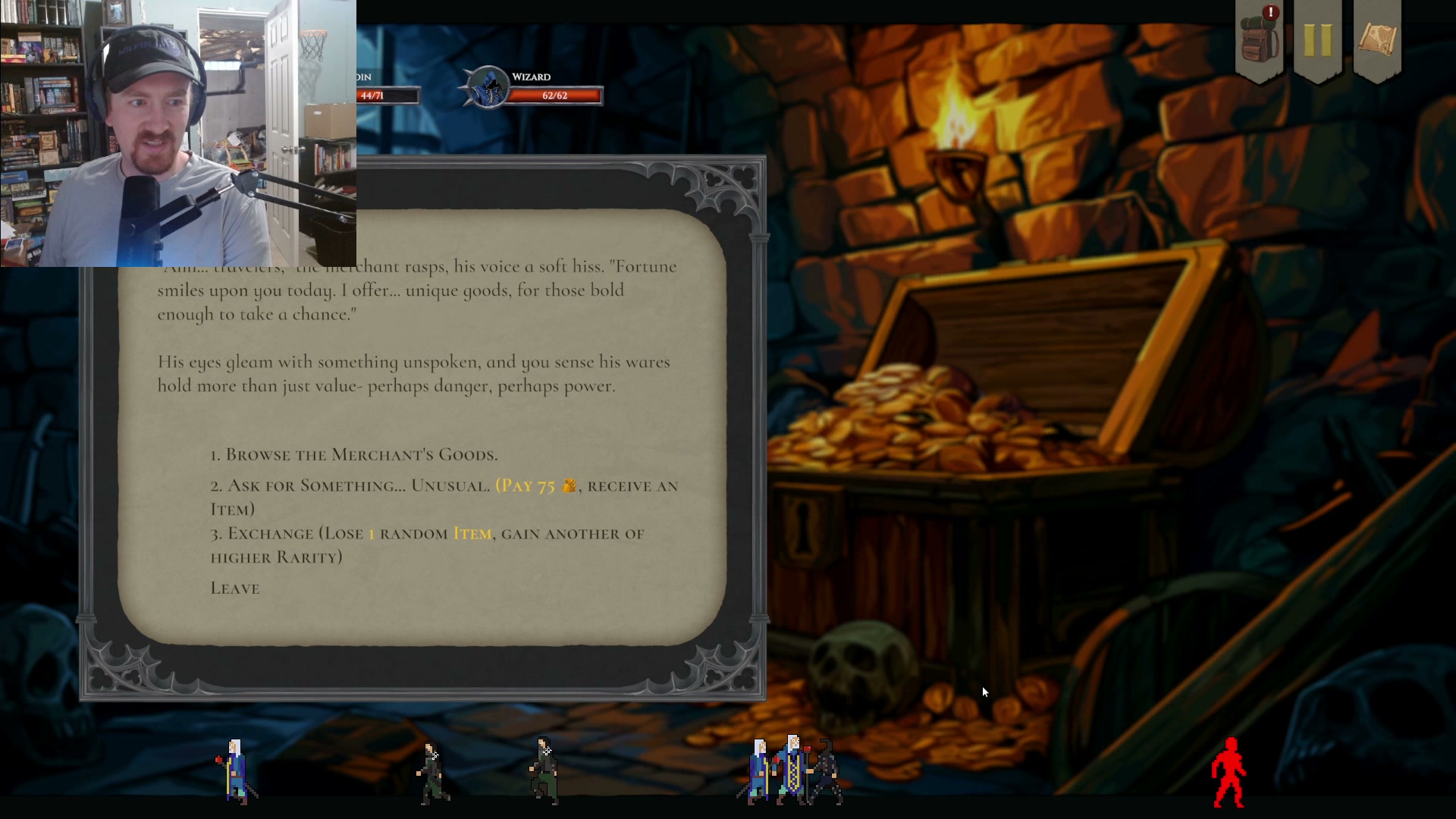
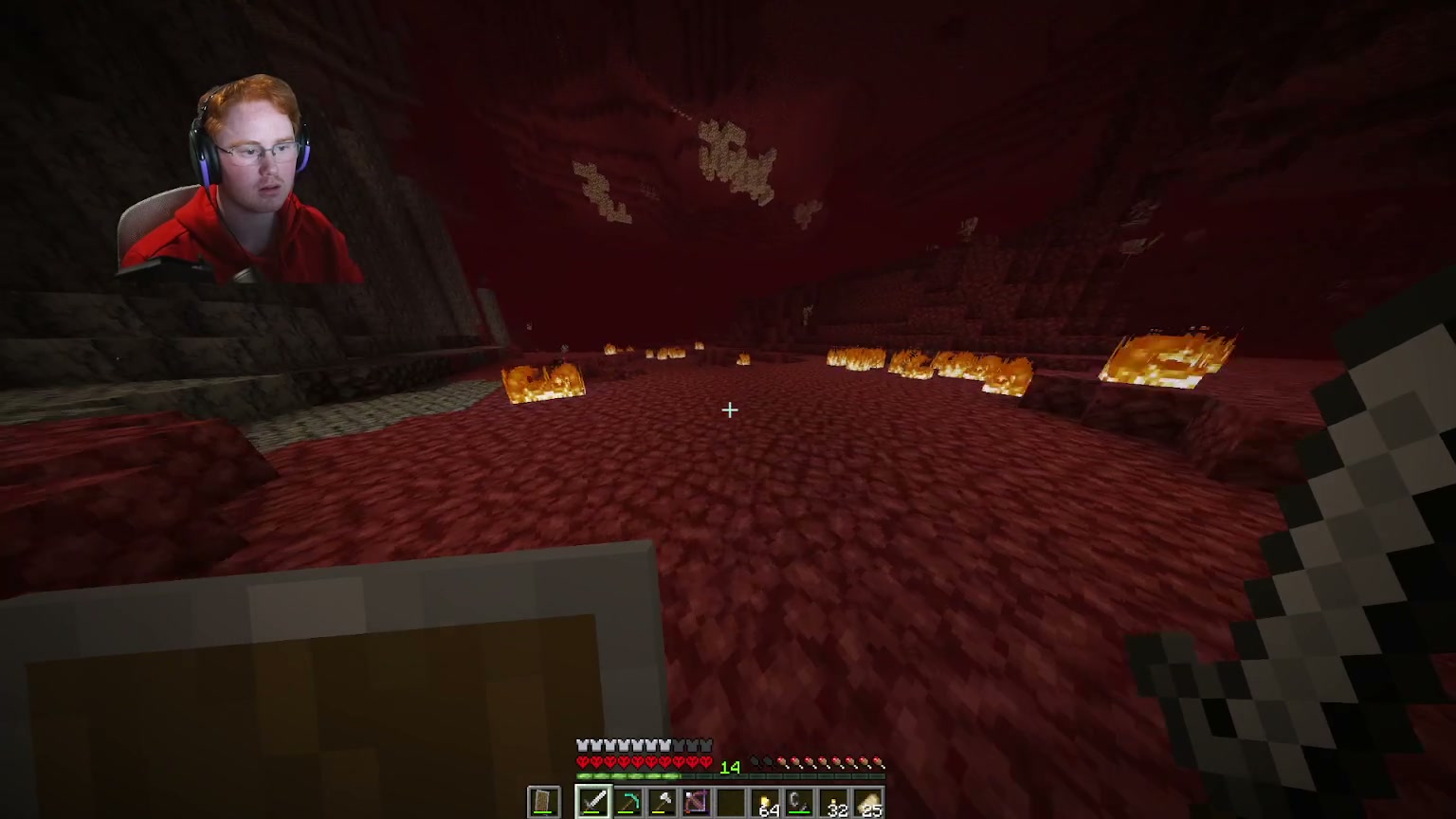
    These are real clips ClipBot made this month.

  6. 8:34 AM

    One tap turns it into a Short.

    Stack your facecam over the gameplay in 9:16, add auto-generated captions in a bold font, trim it, export. Ready for TikTok, YouTube Shorts and Reels — and never watermarked.

  7. Next day

    New viewers find you.

    Your clips are posted, and they also show up on your ClipBot profile, Discover, game pages and the weekly Leaderboard. Someone watches a 40-second clip, clicks your name, and ends up in your next stream.

    🥇 #1 this week 128 upvotes
    TikTok Shorts Reels X Discord
53.5Kclips created
20.6Kbroadcasts clipped
1,000+streamers
0editing apps needed
See it for real

The product, not a promise

Automatic highlight detection

Point ClipBot at nothing — it already knows about your streams. Clips arrive with titles, descriptions and the exact moment in your VOD.

  • Full-length broadcasts, any game or Just Chatting
  • Original quality, no downscaling
  • “Watch on Twitch” jumps to the exact second

A Shorts editor built in

Layouts made for streamers — facecam on top, gameplay below — plus captions generated from your voice. Export and post in under a minute.

  • Stacked, fullscreen and picture-in-picture layouts
  • Auto-captions with 5 bold fonts
  • No watermark, ever
Why ClipBot

What makes it different

ClipBot compared with typical clipping tools
 ClipBot.ggTypical clipping tools
Stream lengthAny length — 30 minutes or 8 hoursOften capped or paywalled
How moments are foundTranscript + chat + audio + AI scoringVolume spikes or manual markers
SetupLog in once — AutoVod does the restUpload VODs or install software
QualityOriginal broadcast qualityOften compressed to 720p
WatermarkNeverCommon on free plans
GamesEvery category, including Just ChattingOften limited to certain genres
FAQ

Questions streamers ask

How does ClipBot find my highlights?

When your stream ends, ClipBot downloads the past broadcast, transcribes it, reads chat activity and listens for big reactions. An AI then scores every moment and cuts the best ones into ready-to-share clips with a title and description.

Do I have to upload anything?

No. Log in with Twitch once and AutoVod picks up your past broadcasts automatically. Just make sure "Store past broadcasts" is turned on in your Twitch settings.

How long does it take?

Most broadcasts are clipped within 10–20 minutes of being picked up. You can watch the progress live on your dashboard.

Can I say "clip it" on stream?

Yes — voice-called clips are marked in your dashboard. When you shout for a clip, ClipBot makes sure that moment gets cut.

Are there watermarks?

Never. Download your clips in full quality and post them anywhere.

Can I turn clips into vertical Shorts?

Yes. Open any clip from your broadcast page and choose "Make a Short" to stack your facecam over gameplay in 9:16, add auto-captions and export.

What does it cost?

Every new streamer gets a 4-week free trial with one broadcast clipped per week. ClipBot+ is $4.99/month for every broadcast, more clips per stream and priority processing.

Can I hide a clip I don't like?

Yes. On your broadcast page, tap "Hide" on any clip. It disappears from your public profile, Discover and game pages, and tells ClipBot what you don't want.

Tonight's stream could be tomorrow's clips.

Log in with Twitch — ClipBot starts on your most recent broadcast right away. Free for 4 weeks.

Start free with Twitch

Become a ClipBot Partner

Get unlimited ClipBot in exchange for honest feedback that helps us improve.

Apply on Discord