Shorts branding: your colours, styles, webcam layout and edit on every Short
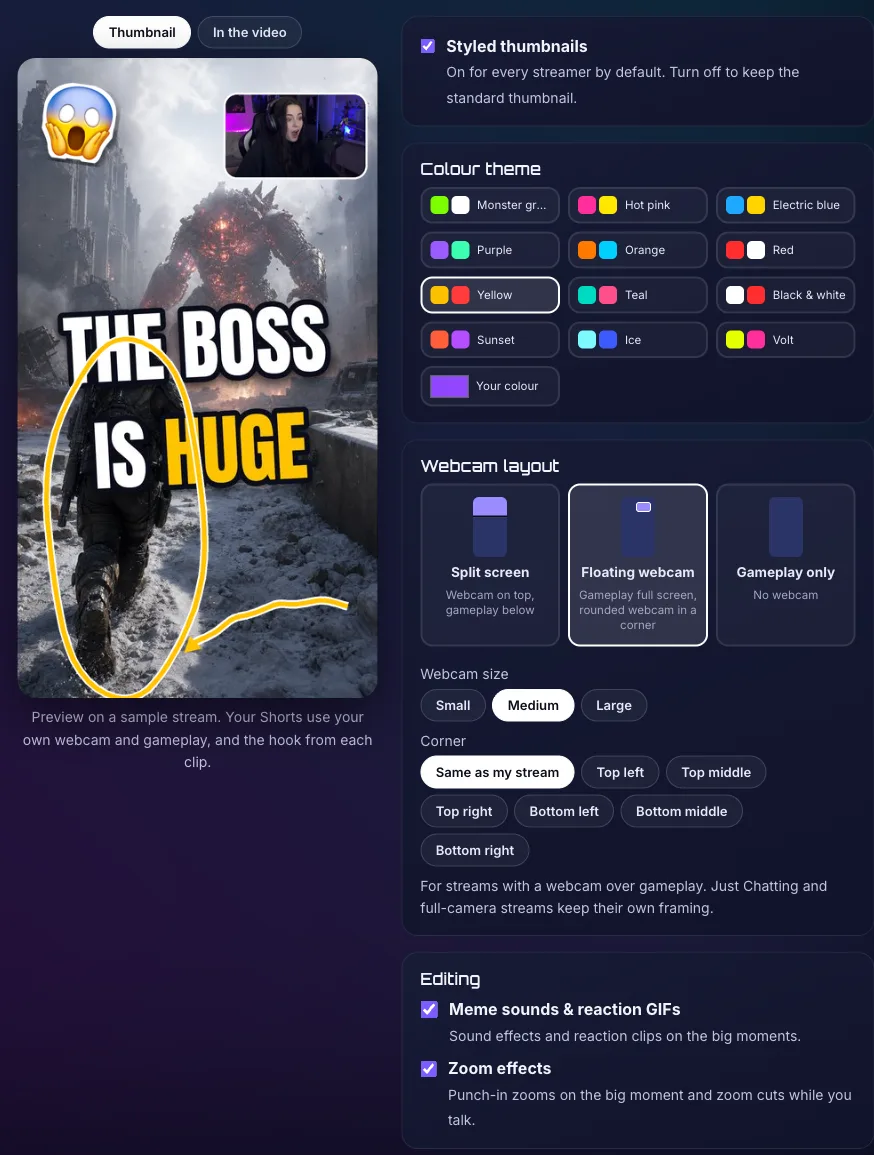
Pick your colours, thumbnail styles, webcam layout, caption size and edits, and ClipBot builds every Short that way: 10 styles, 12 colour themes plus a colour picker, a floating webcam in 7 positions, and every part switchable.
 ClipBot team · · 6 min read
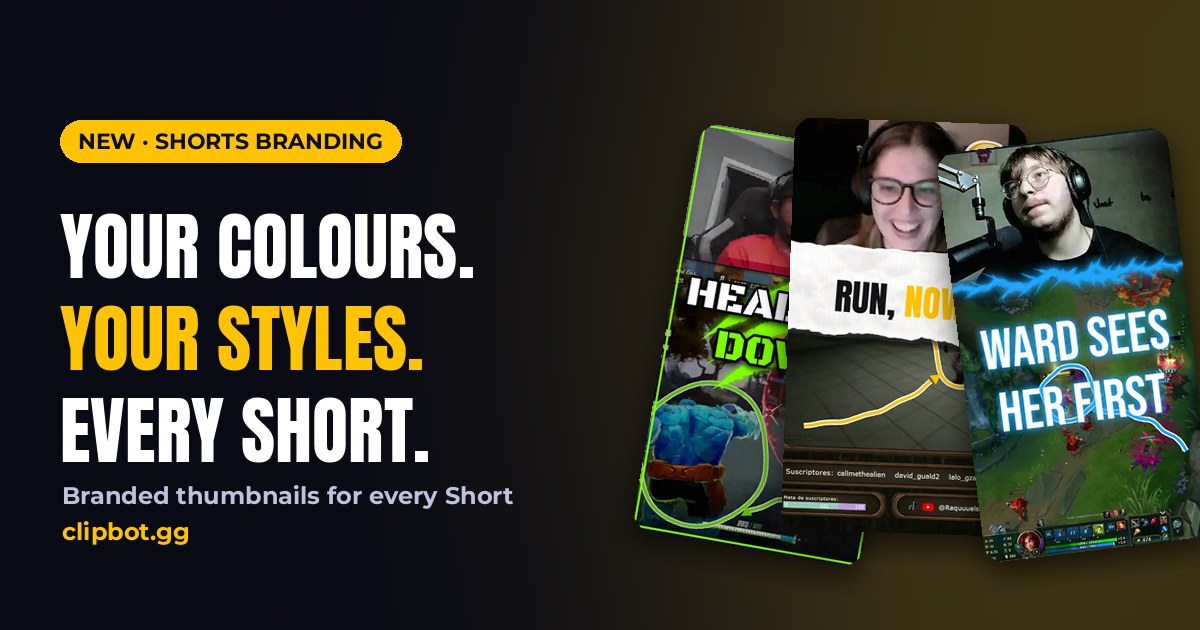
A Short lives or dies on its thumbnail. It's the first thing anyone sees in a feed, and until now every ClipBot Short got the same look. Today that changes: Shorts branding lets every streamer pick their colours, the thumbnail styles they like, where their webcam goes, how big the captions are and which edits they want, and ClipBot builds each Short that way automatically.
Spotlight: one broadcast, start to finish
Here's the whole thing on a real stream. omgmystic_ picked Hot pink, and these are the five Shorts ClipBot made from her ARC Raiders broadcast, exactly as they appear on the site:
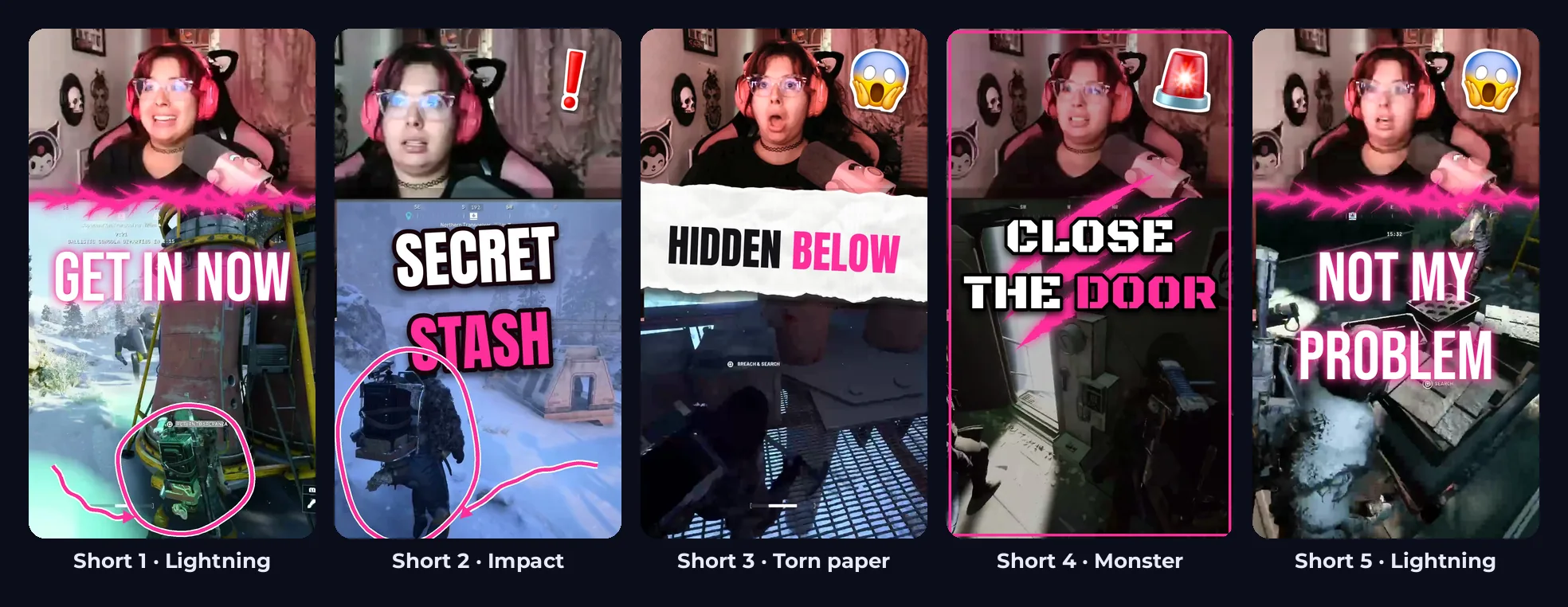
- Every Short got a different style until all four of her styles had a turn, then the rotation started over.
- Markers only where there was something to point at. Two Shorts had a clear action in the gameplay and got the hand-drawn circle; three didn't, so they got none.
- Emoji only when one fit. Four Shorts got one (😱, ❗, 🚨); on “Get in now”, ClipBot wasn’t sure enough, so it left it off.
- Inside each Short, the highlighted caption words, the hook and the progress bar are pink too.
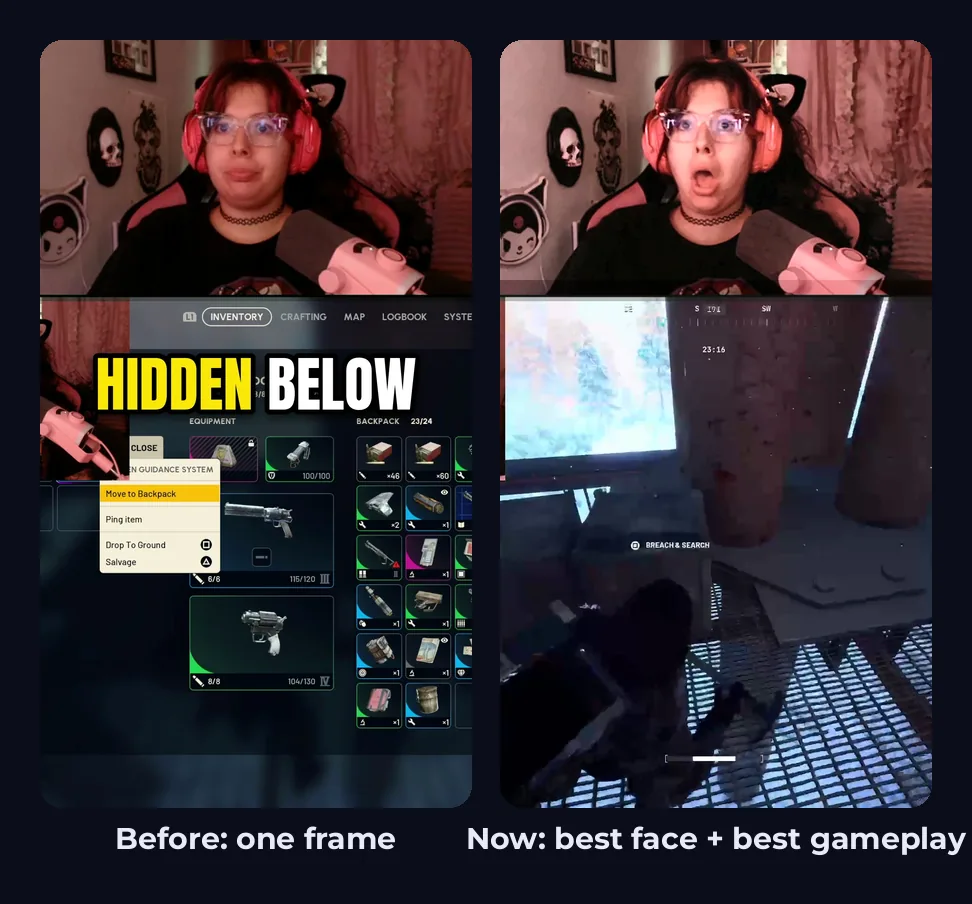
It starts with a better picture. Before any styling, ClipBot checks several moments of the Short and picks two: the one where your face on the webcam is clearest and most expressive, and the one with the most exciting gameplay, preferring whatever you’re talking about. The webcam half then gets a quick clean-up, more when the camera is soft or dark.
Your colours, your styles, your layout
Every streamer now has a Shorts branding page, under Branding in the sidebar. Everything on it is yours to change, and every part can be switched off:
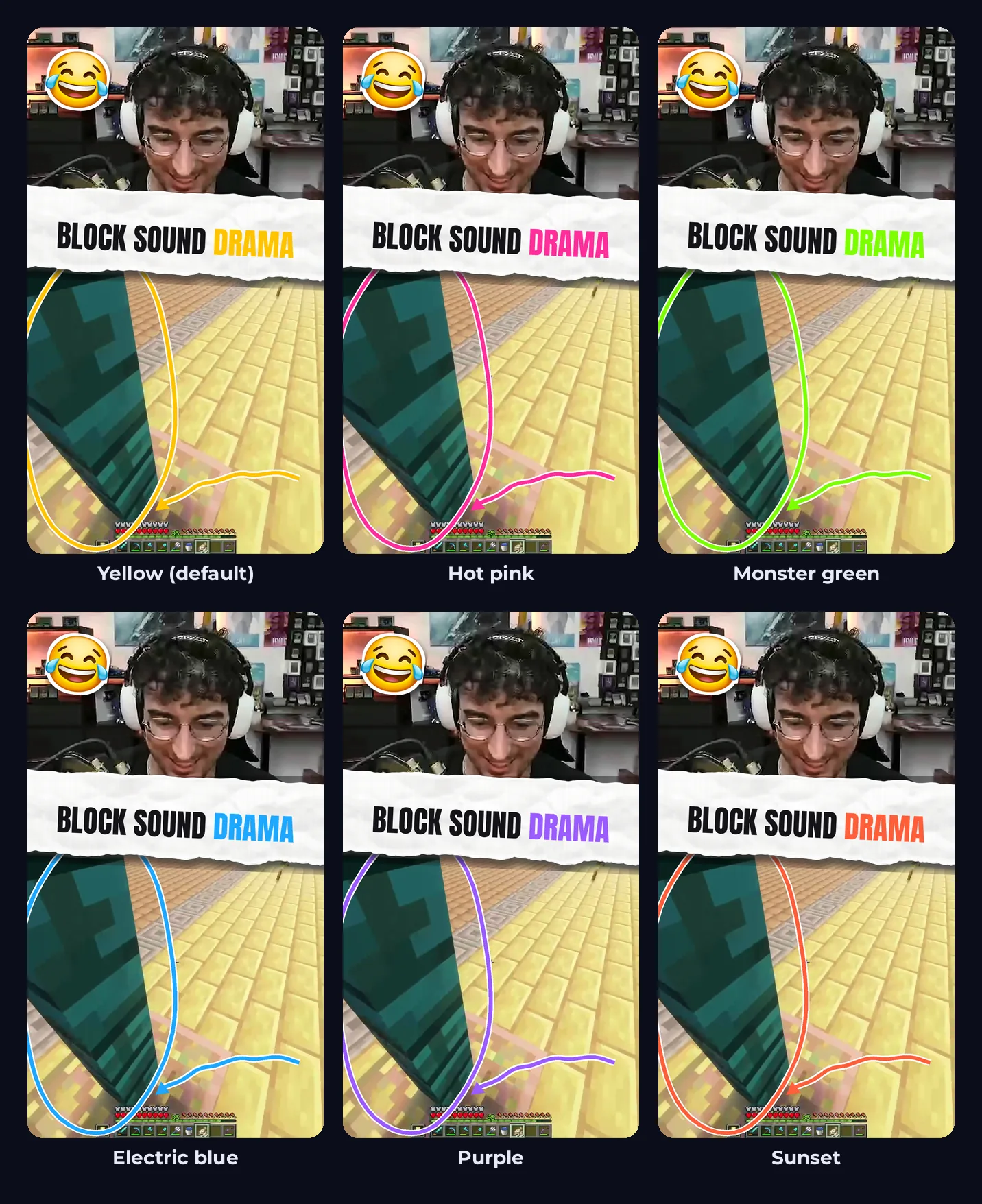
- A colour theme. Twelve presets, from Yellow and Hot pink to Monster green, Ice, Sunset and Black & white, or any colour you like with the colour picker. Pick one colour and the rest of the palette is built from it.
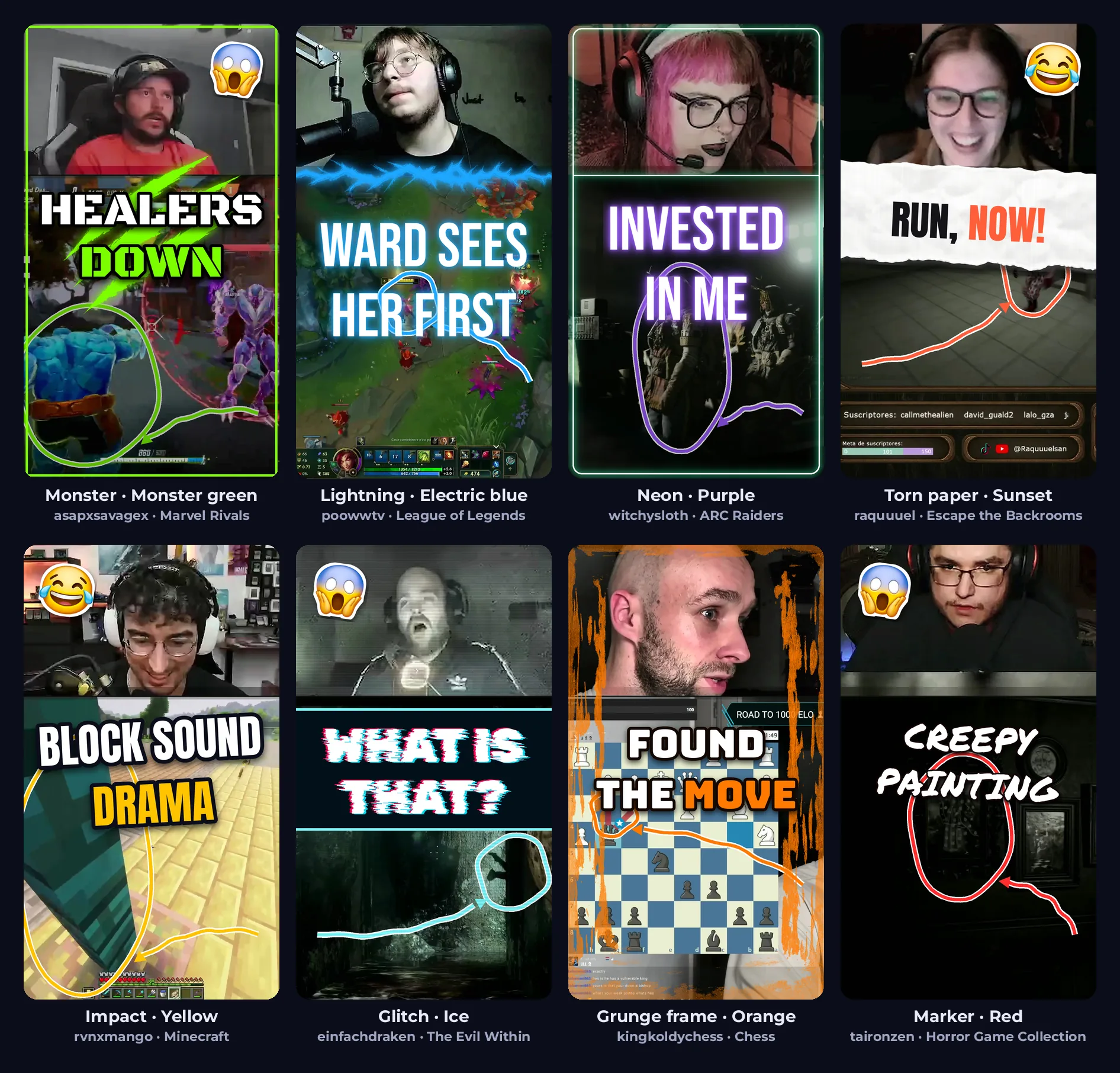
- The styles you like. Tick as many as you want: Torn paper, Impact, Monster, Lightning, Neon, Glitch, Grunge frame, Marker, Clean, or Plain with no text at all.
- Your webcam layout. Split screen, a floating webcam over full-screen gameplay, or gameplay only.
- Captions. On or off, in four sizes.
- Editing. Meme sounds and reaction GIFs, and zoom effects, each on or off.
- Markers and emoji. Two switches for a hand-drawn circle and arrow on the action, and a reaction emoji beside your face.
Every style suits a different kind of stream. Here they are on real Shorts from eight streamers, restyled for this post:
Put your webcam where you want it
Most ClipBot Shorts stack your webcam on top and the gameplay below. That’s still the default, but some streamers want the gameplay to fill the screen. Now there are three layouts:
- Split screen. Your webcam across the top, gameplay below. Your face is big, which suits reaction-heavy streams.
- Floating webcam. The gameplay fills the whole Short and your webcam floats over it in a box with rounded corners and a white edge. Pick small, medium or large, and put it top left, top middle, top right, bottom left, bottom middle or bottom right, or choose Same as my stream to keep the corner your webcam is in on Twitch.
- Gameplay only. No webcam at all, for streams where the game is the show.
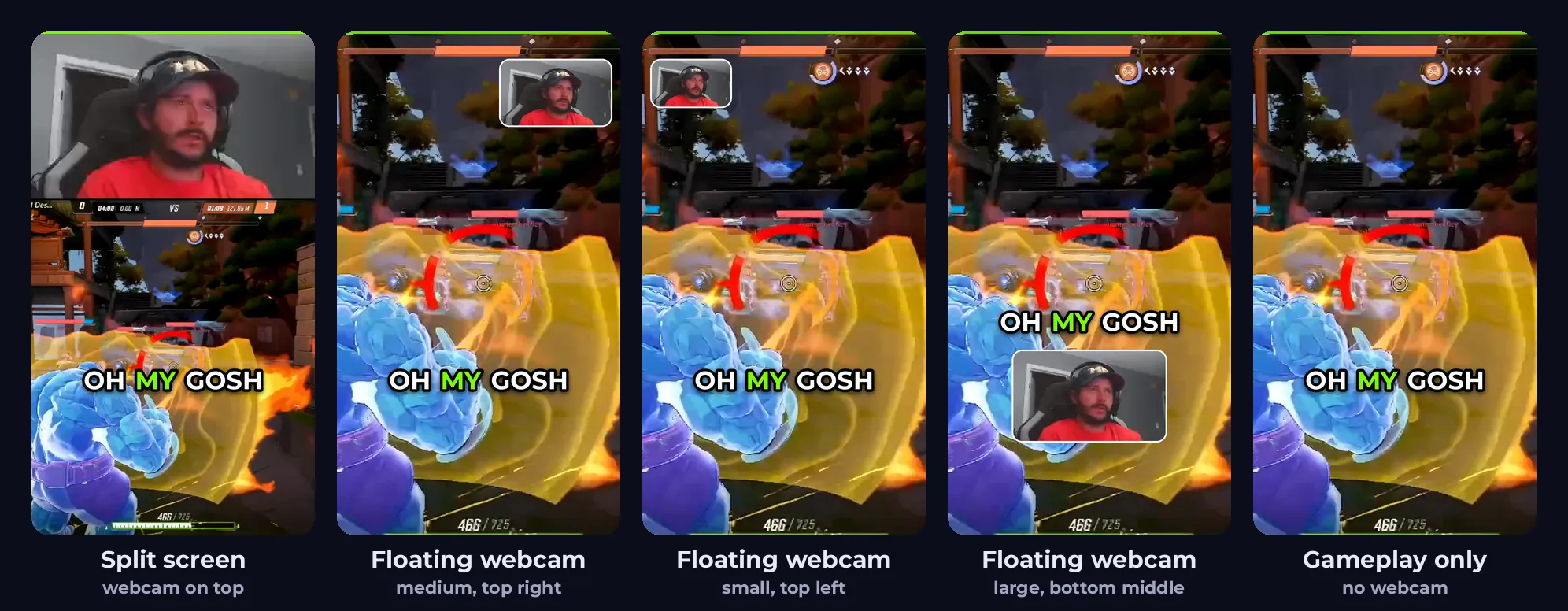
The hook, captions, stickers and thumbnail all work around your webcam wherever you put it: the opening hook sits just under a webcam at the top, the captions sit just above one at the bottom, and a marker on the thumbnail never circles your webcam instead of the action. Layouts apply to streams with a webcam over gameplay. Just Chatting and full-camera streams keep their own framing, because there the camera is the content.
One style, every colour
Every style is drawn from your theme, so the same Short can be on-brand for anyone. Here's one Short in the Torn paper style across six themes:
Markers and emoji, only when they fit
Hand-drawn markers and reaction emoji are the classic YouTuber thumbnail move, and they're on by default. But a circle around nothing, or a random emoji, looks worse than none. So they're only drawn when there's something to show:
- Markers appear when ClipBot finds a clear action in the gameplay, like the character, the enemy or the object the moment is about. The circle goes around it, and the arrow comes in from the open side.
- Emoji appear when ClipBot is reasonably sure one fits the moment. It reads the clip's hook and what was said, picks from a set of reactions (shocked, laughing, skull, fire, eyes, mind blown…), and places the emoji beside your face, never over it.
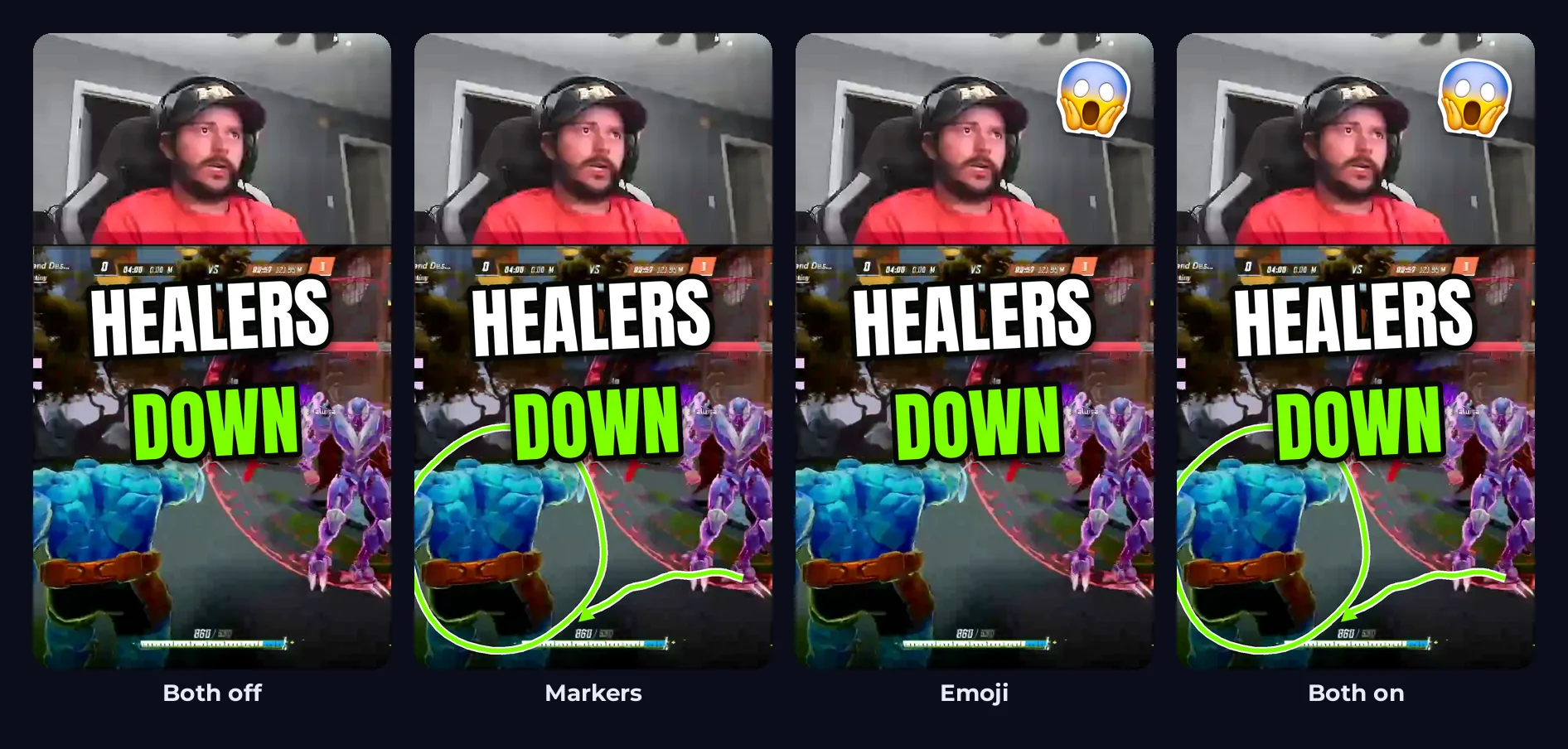
And when there’s nothing clear to point at, or no emoji fits, ClipBot leaves them off. In the grid above, three of the eight Shorts got no emoji.
Inside the Short, too
The branding doesn't stop at the cover. In the Short itself, the highlighted word in the captions, the key word of the opening hook and the progress bar all use your colour, and the hook opens in the same font as that Short's thumbnail style. No extra frames or backgrounds over your video, just your colours.
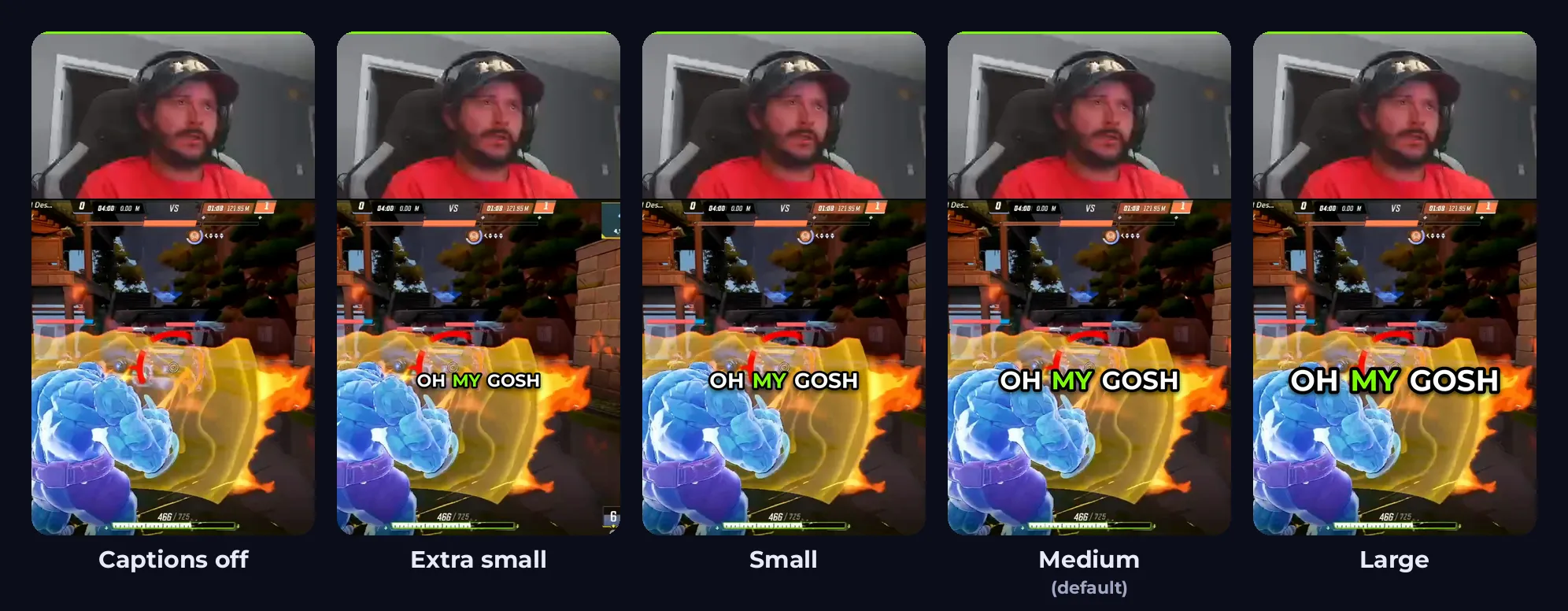
Captions are yours to size too. Some streamers want big, bold words; others want them out of the way of the gameplay. Pick Extra small, Small, Medium or Large, or switch captions off.
Your edit, your call
ClipBot edits every Short for you, and two parts of that edit are now switches:
- Meme sounds and reaction GIFs. A sound effect or a reaction clip on the big moments. Great for chaotic streams; turn it off if you’d rather your own audio carries it.
- Zoom effects. A punch-in on the big moment, and zoom cuts on your webcam while you talk (on the floating webcam too). Turn it off for a steady, unzoomed Short.
Together with the styled thumbnails, captions, markers and emoji switches, that makes every part of a ClipBot Short something you can keep, change or turn off.
Every Short looks different
Pick several styles and ClipBot rotates through them. Each new Short gets a random one of your styles, and a broadcast never repeats a style until it has used every style you picked. Then it starts a new round, and never with the style it just ended on. Your Shorts look like a set, not like copies.
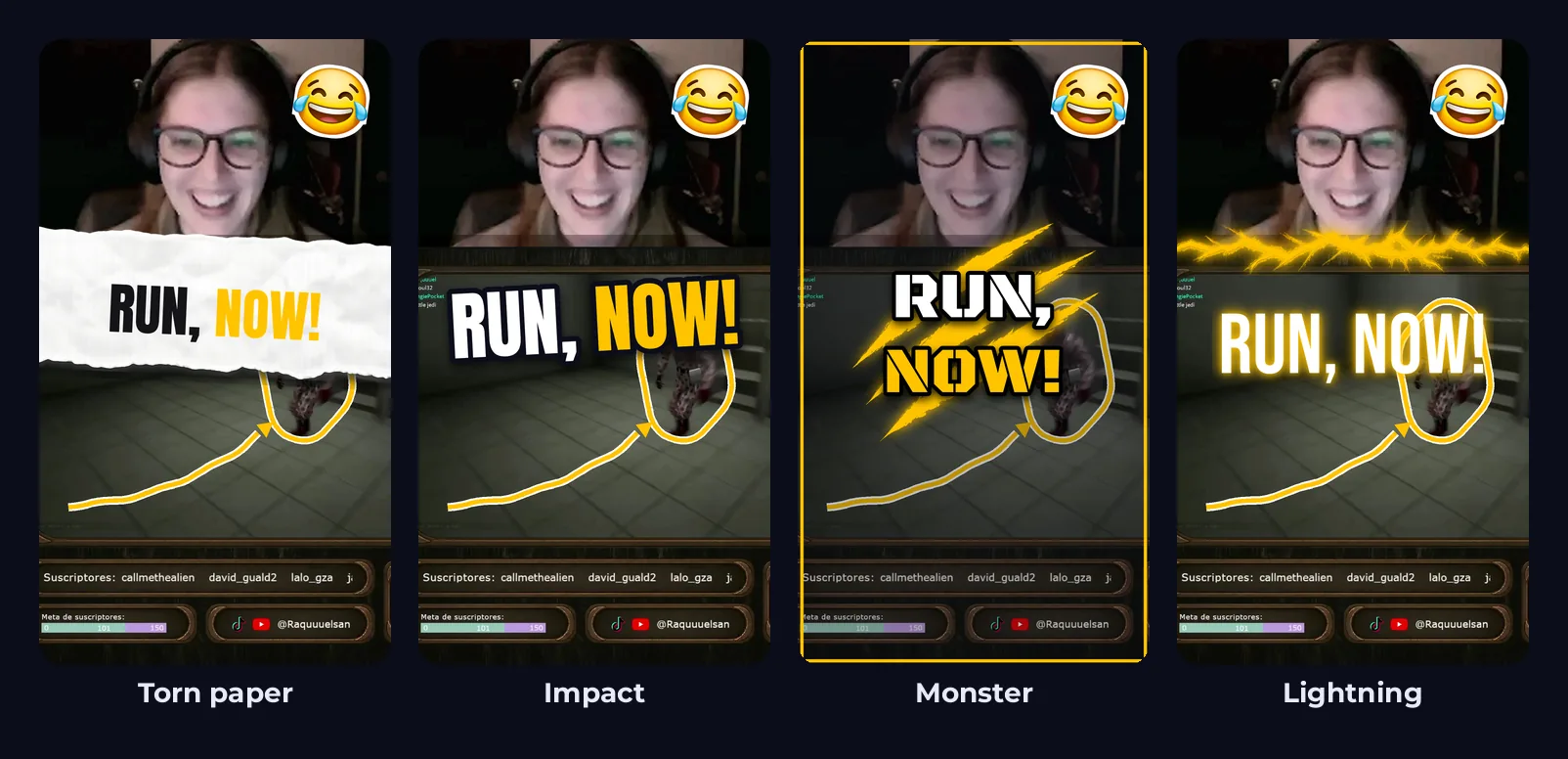
Each style is drawn fresh for every Short, in about 0.15 seconds. The art in the styles (torn paper, claw marks, lightning, brush strokes) was generated once and is reused, so branding adds nothing to how long your Shorts take.
Grab your thumbnail
Posting a Short yourself? On your broadcast page, every Short now has a Thumbnail button next to its download. It saves the full-size 1080×1920 cover, ready to set as your TikTok or YouTube Shorts cover.
Questions
How do I brand my ClipBot Shorts?
Is Shorts branding on by default?
Can I pick more than one thumbnail style?
When do markers and emoji appear on a thumbnail?
Does branding change the Short itself or just the thumbnail?
Does branding change my existing Shorts?
Can I change where my webcam goes in my Shorts?
Can I turn off the meme sounds or zooms?
Can I change the caption size or turn captions off?
Can I download a Short’s thumbnail?
Keep reading
 News
Introducing Stories (Beta): the stories told on stream, cut into one Short
Oct 12, 2026 · 4 min read
News
Introducing Stories (Beta): the stories told on stream, cut into one Short
Oct 12, 2026 · 4 min read
 Behind the build
We blind-tested ClipBot against six AI clipping tools, came second to last, and rebuilt our Shorts
Oct 12, 2026 · 7 min read
Behind the build
We blind-tested ClipBot against six AI clipping tools, came second to last, and rebuilt our Shorts
Oct 12, 2026 · 7 min read
 Behind the build
Your streamer Journey: every milestone as a gem, with rarity from real data
Oct 12, 2026 · 5 min read
Behind the build
Your streamer Journey: every milestone as a gem, with rarity from real data
Oct 12, 2026 · 5 min read