Behind the build

We rebuilt the Shorts editor: preview = export, Magic edits, more of the stream and your chat on screen

The ClipBot Shorts editor, rebuilt: one caption engine draws the preview and the export, seven one-click Magic edits, a payoff-first hook, pull in more of the broadcast, Custom Zones with up to four capture zones, your Twitch chat on the Short, and captions coloured by speaker.

ClipBot team · · 8 min read

Every ClipBot broadcast comes back with Shorts ready to post. Changing one used to mean a few sliders and a preview that didn’t quite match the export. So we rebuilt the editor from the ground up, and now the preview is exactly what you export.
7layouts, including Custom Zones
7one-click Magic edits
2,796Auto Shorts you can open with their AI edits
$0extra, on every plan
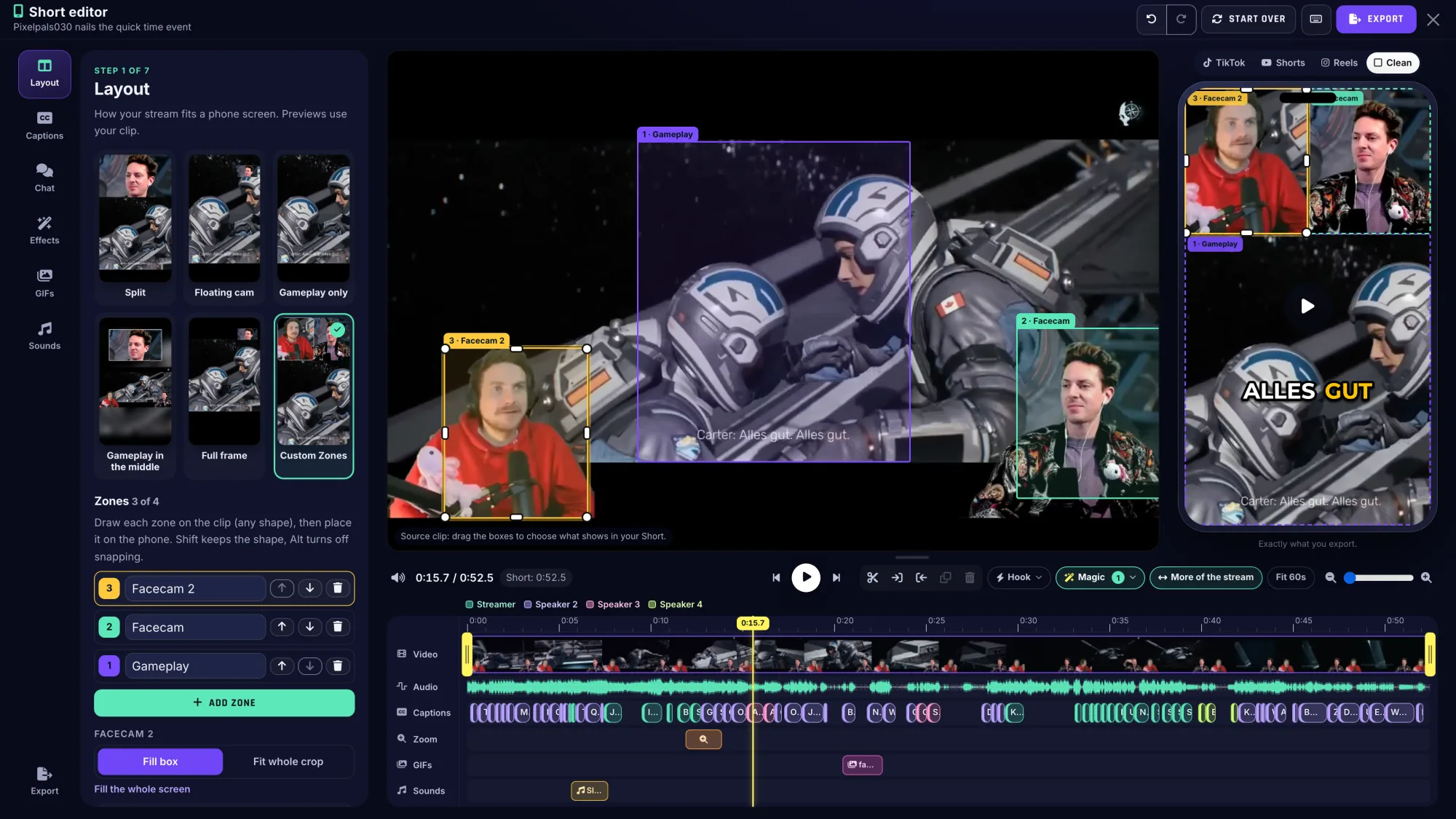
The rebuilt ClipBot Shorts editor at 1080p with the Custom Zones layout on pixelpals030’s broadcast: three zones drawn on the stream (Gameplay in the middle, Facecam around the person on the right, Facecam 2 around the person on the left), and on the phone preview both facecams side by side on top with the gameplay below and the caption ALLES GUT; a step rail on the left and a timeline underneath with Video, Audio, Captions, Zoom, GIFs and Sounds tracks, the captions coloured by four speakers
Two facecams, one Short: Custom Zones on pixelpals030’s broadcast puts both people on camera side by side, with the gameplay underneath.

What’s new, at a glance

Preview = export

One caption engine now draws the preview in your browser and renders the 1080×1920 MP4. What you see is what you post.

  • Seven steps down the side: Layout, Captions, Chat, Effects, GIFs, Sounds, Export.
  • A layout gallery built from your own clip: Split, Floating cam, Gameplay only, Gameplay in the middle, Full frame, Dual cam and Custom Zones.
  • A real timeline with Video, Audio, Captions, Zoom, GIF and Sound tracks. Drag, trim and split anything.
  • Platform preview: flip the phone between TikTok, YouTube Shorts, Reels and Clean to frame around each app’s buttons. The buttons never end up in your export.
  • Shortcuts: Space plays, I and O set the start and end, B splits, Z adds a zoom, Ctrl/⌘ Z undoes.
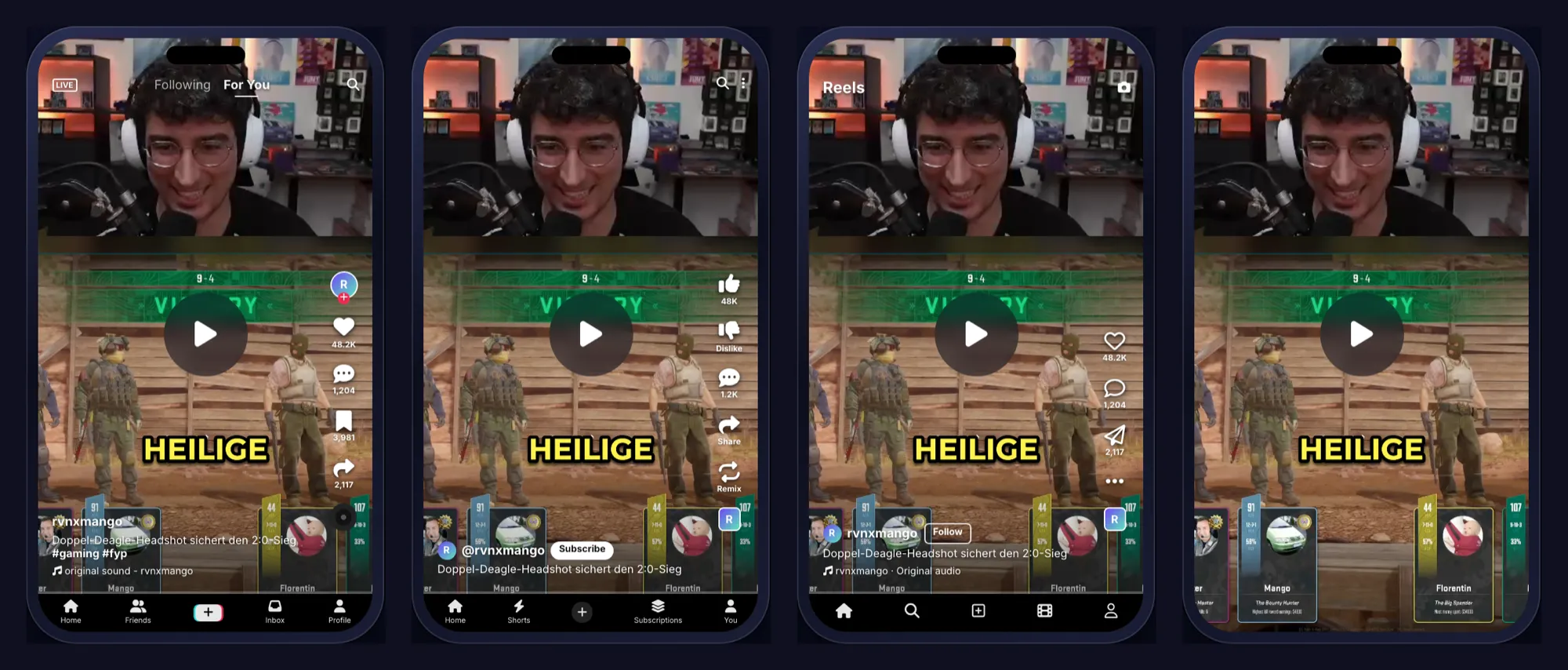
The same Short four times on the editor’s phone preview: with TikTok’s buttons and caption drawn over it, with YouTube Shorts’ buttons and Subscribe, with Instagram Reels’ buttons and Follow, and Clean with nothing over it
One Short, four previews: TikTok, YouTube Shorts, Reels and Clean. Only Clean is what gets exported.

Animated caption styles

Pick a style in Captions and the phone shows it animating on your own clip, word by word: Hook, Karaoke, One word, Bloom, Comic, Pop, Bounce, Boxed, Highlighter and Neon glow. Then change the font, colours and position to make it yours.

Six of the styles on socruel’s clip: Hook, Karaoke, Bloom, Comic, Neon glow and Bounce.

Auto Shorts open with their AI edits as layers

Open an Auto Short and it arrives the way ClipBot made it, with every edit as a layer you can move, change or delete.

  • Layout and crops, trim and jump cuts, slow-mo and zooms.
  • Caption style and colour, the hook title and the censoring.
  • The GIFs and the sound effects.

Leave them alone and the export matches the Auto Short (the colour grade and progress bar aren’t layers yet). 2,796 of the 2,948 Auto Shorts ClipBot has made open this way.
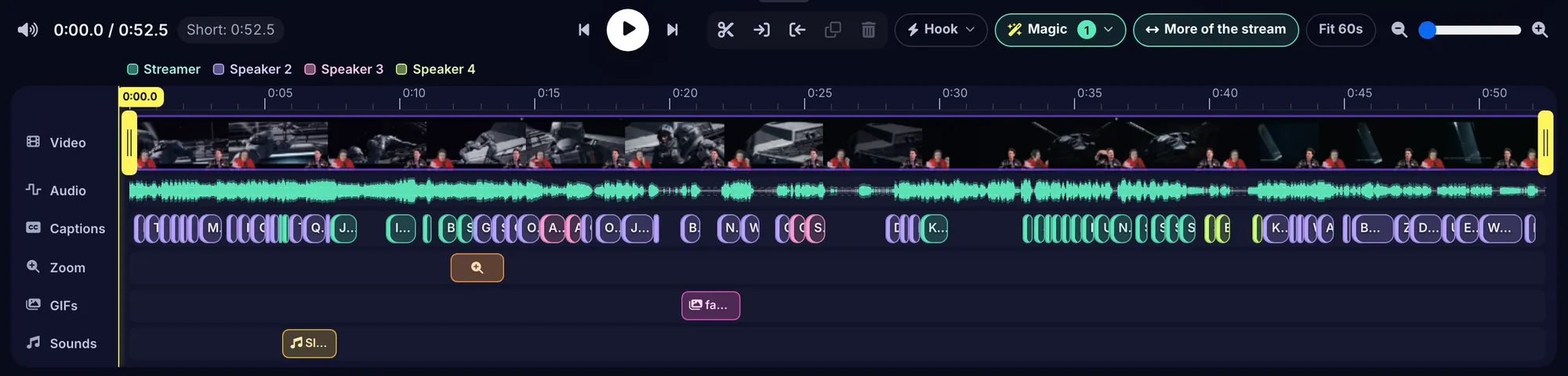
The editor timeline of pixelpals030’s Auto Short Barely Escaped, opened as layers: a zoom punch-in at 0:11.9 on the Zoom track, a facepalm GIF from 0:20.4 to 0:22.6 on the GIFs track, a slide whistle at 0:05.7 on the Sounds track, the Hook and Magic buttons showing the hook title is on, and caption bars coloured by four speakers
pixelpals030’s Auto Short “Barely escaped” opened in the editor: the zoom, the facepalm GIF, the slide whistle and the hook title ClipBot chose are all there as layers.

Magic: one click each

The edits you’d make on almost every Short, one click each under Magic in the toolbar.

  • Remove silences (Light or Tight): cuts the pauses, leaving a breath either side.
  • Auto zoom: punches in on the peak and the loudest moments.
  • Auto sounds: sound effects on the hype words.
  • Hook title: a big title card on the first 2 seconds.
  • TikTok-safe language: masks swears in the captions and bleeps or mutes them.
  • Slow-mo payoff: the payoff at 0.6× speed.
  • Auto emoji: pops an emoji above a caption when one fits.
Magic → Remove silences → Tight on vitosiklive’s Counter-Strike clip: 7 pauses cut, 6 seconds of dead air gone, 0:26.8 down to 0:20.8. Every cut is a hatched gap you can still drag.
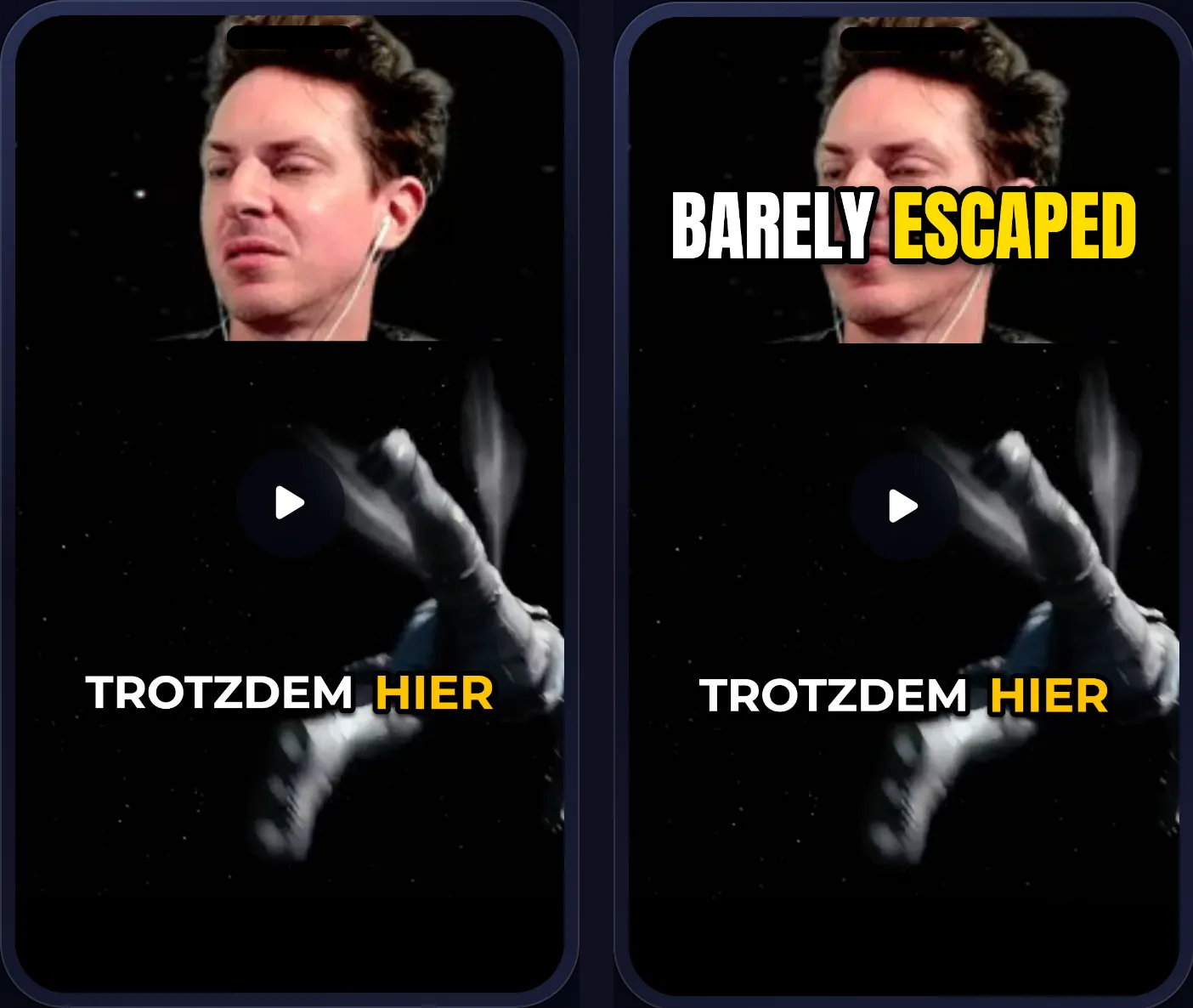
The first second of pixelpals030’s Short twice: on the left without a hook title, with only the caption TROTZDEM HIER; on the right with Hook title on, the words BARELY ESCAPED in big white and yellow letters across the top
One click, before and after: Hook title off, then on. The words come from ClipBot’s hook for the moment, and you can retype them in Effects.

See your audio, cut the silences

The Audio track draws your clip’s waveform, so you can spot the pauses and the yells before you press play.

  • Remove silences finds pauses in the audio itself, the same way Auto Shorts do.
  • Each cut shows as a hatched gap on both the video and the audio track.
  • Caption end times come from the waveform too, so captions don’t hang after you stop talking.
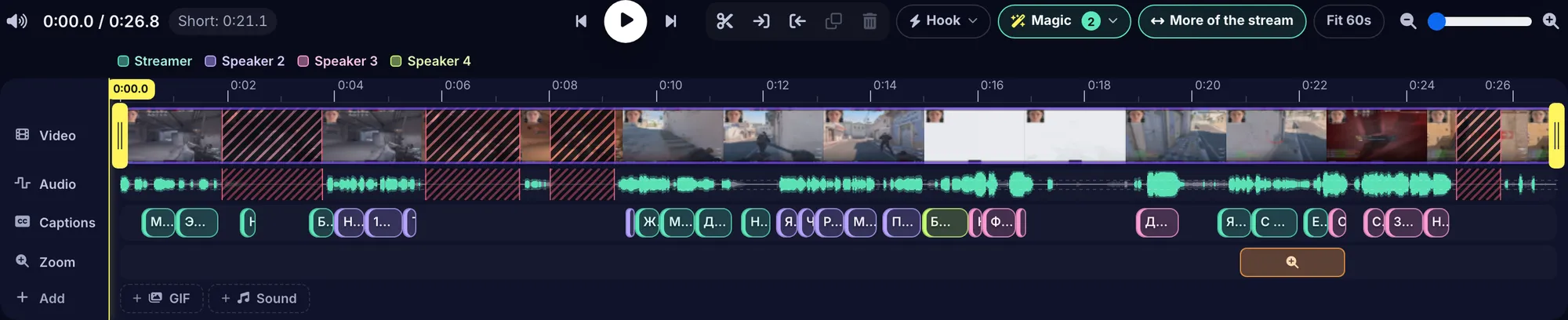
The timeline of vitosiklive’s Counter-Strike clip: the Audio track shows the waveform, and four pauses are cut out as red hatched gaps across the Video and Audio tracks, so the Short is 0:21.1 long from a 0:26.8 clip
vitosiklive’s Counter-Strike clip: 4 pauses removed, 5.7 seconds of dead air gone. The 26.8-second clip became a 21.1-second Short.

Open with the payoff

The oldest trick in short-form: show the best moment first, then rewind to how it happened. The Hook button does it in one click.

  1. Pick the AI’s best moment, or move the playhead and use that.
  2. Set the length, 2 to 5 seconds.
  3. Choose the hand-over: Rewind (a VHS-style glitch), Wait for it… (a tag that pops up), Flash or none.
Payoff preview on socruel’s clip: 3 seconds from 0:11.6 play first, then the Rewind glitch hands over to the build-up.

More of the stream

Clip starts a few seconds late? Best reaction right after it ends? Press More of the stream to load the broadcast up to ten minutes either side, then drag the clip’s ends out.

More of the stream on rvnxmango’s clip: the timeline switches to the broadcast’s clock, and dragging the start handle out grows the Short from 0:32.6 to 0:42.5.
  • Broadcast clock: the timeline switches to the stream’s own time and keeps the original clip marked. Parts Twitch muted for music are flagged.
  • Captions follow: ClipBot transcribes the seconds you add.
  • Parts: split (B) and reorder, so the Short jumps from setup to payoff without the dead minute.
  • Save as clip: keep a better moment you found as a new clip on your broadcast page. Never posted to Twitch automatically.
  • A Short can be up to 3 minutes long.

Custom Zones: build your own layout

Every overlay is different, so draw your own: up to four zones of any shape on the stream, each placed anywhere on the phone.

  • Two people on camera? One zone per facecam, side by side on top (like the editor shot at the top of this post).
  • Pull out the HUD: the minimap in a corner, the scoreboard across the screen.
  • Style each zone: rounded corners, a border and a shadow, over a black, blurred or coloured background. You choose which sits in front.
  1. Pick Custom Zones in Layout. It starts from your current layout.
  2. Press Add zone and drag its box over what you want on the stream.
  3. Drag and size the same zone on the phone. Shift keeps the shape; Alt turns off snapping.
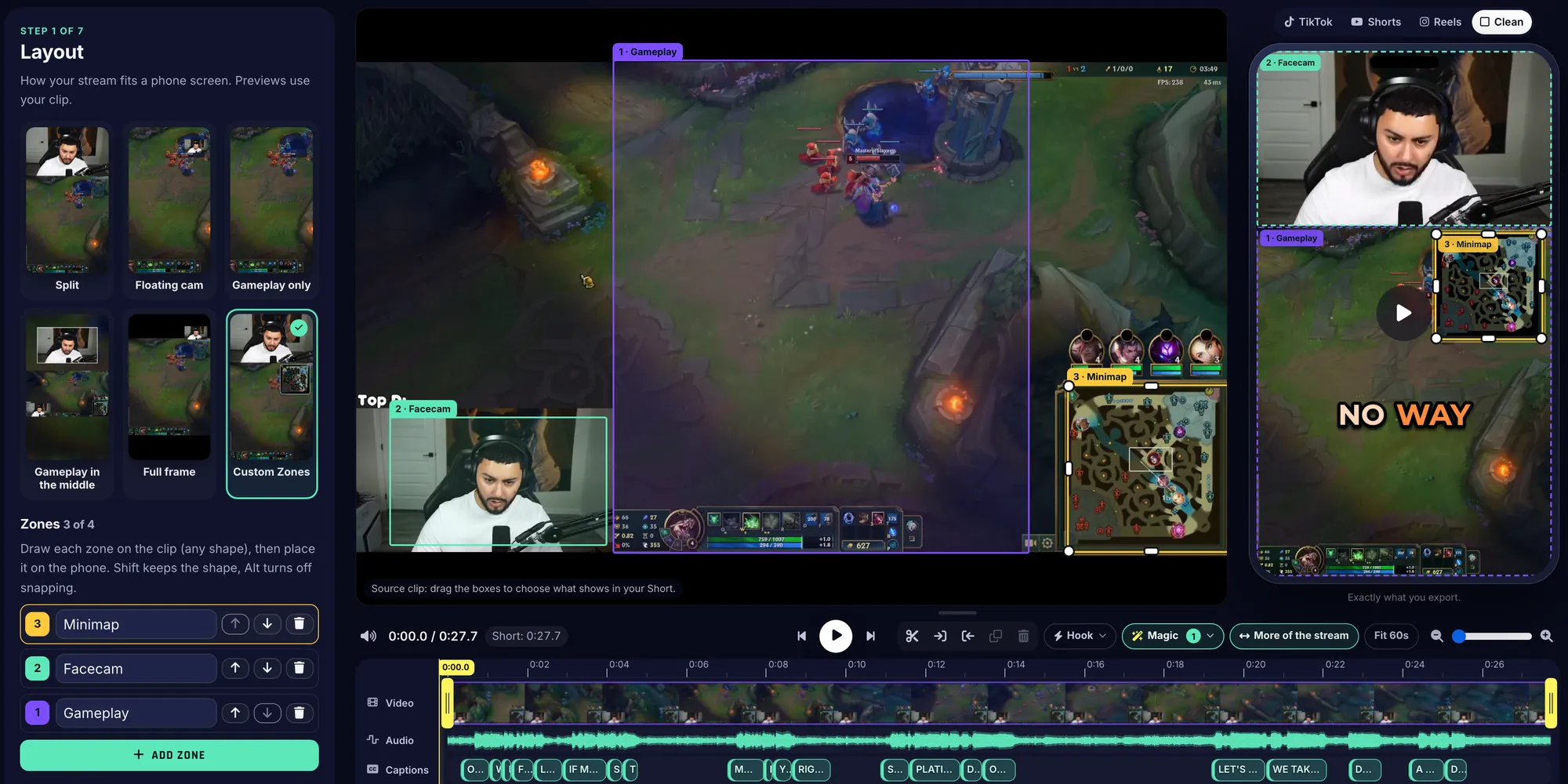
Adding a zone: draw it over the minimap on the stream, then drop it where you want it on the phone.
The Custom Zones layout on socruel’s League of Legends stream with three zones: 1 Gameplay drawn over the middle of the stream, 2 Facecam drawn around the webcam in the bottom left, and 3 Minimap drawn around the minimap in the bottom right. On the phone the facecam fills the top, the gameplay fills the rest and the minimap sits in a bordered square in the top right corner of the gameplay
Three zones on socruel’s League of Legends stream: facecam on top, gameplay below, and the minimap pulled out of the bottom corner and placed where viewers can actually see it.

Your chat, on the Short

Chat going wild is half of what makes a moment land, and it usually gets cropped out. The Chat step puts your real Twitch chat on the Short, as it happened.

  • Names in their colours, badges and emotes.
  • Follows your cuts, parts and slow-mo, so every message lands when it was sent.
  • Four styles: Twitch classic, Floating bubbles, Minimal, and Hype only (just the “clip it”, W and KEKW moments).
  • Drag and size the chat box anywhere on the phone.
rvnxmango’s real chat on their Short, Twitch classic style: 17 messages, 12 of them hype, each one appearing when it was sent.

GIFs and sound effects

  • GIFs from GIPHY: search in the editor or tap an idea (hype, shocked, facepalm). It lands at the playhead; drag and size it on the phone.
  • Sound effects from a free CC0 library: search or browse by tag (win, reveal, hype, fall, hit, dramatic), preview each one, and set its volume.
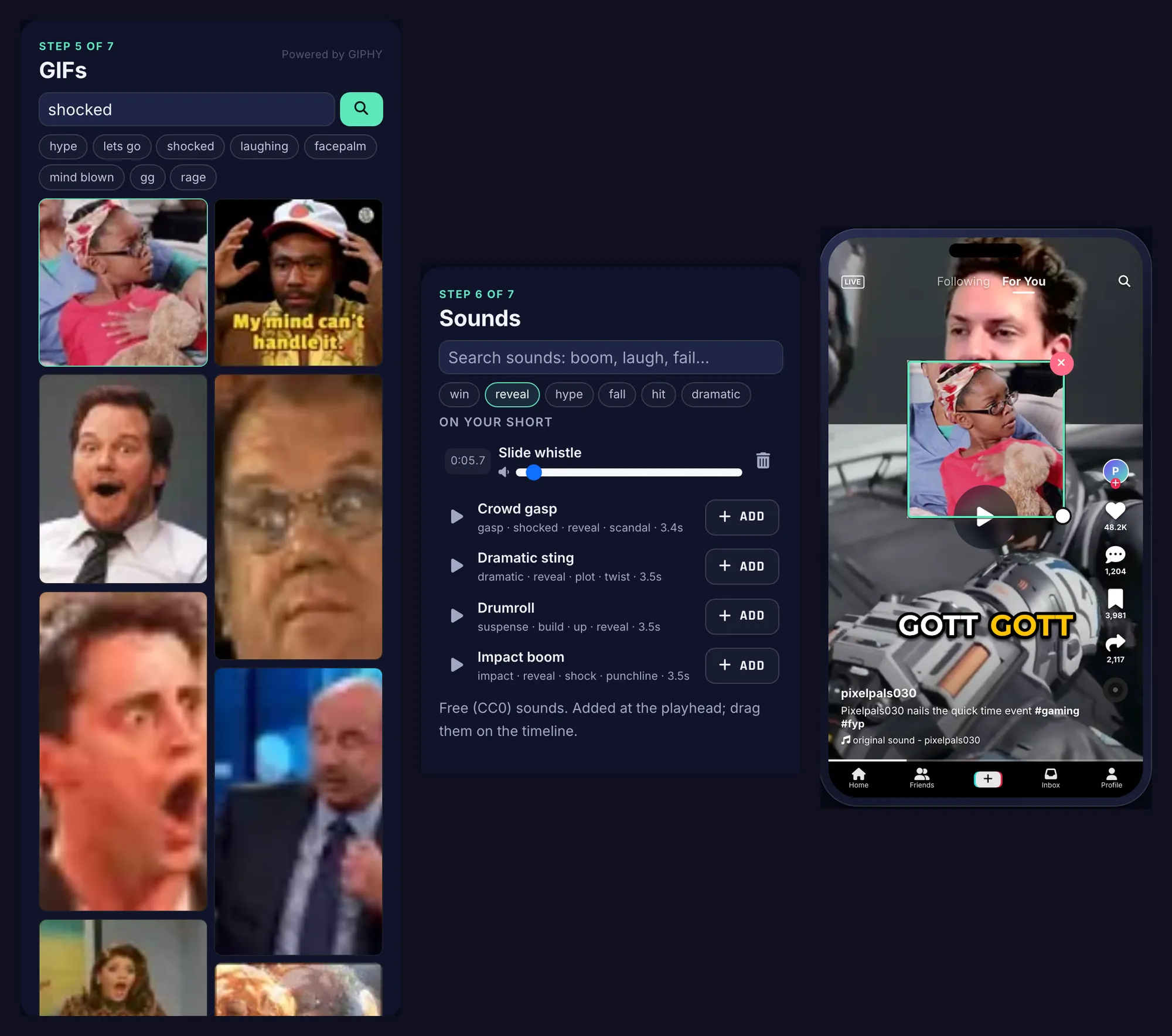
Three panels: the GIFs step with a search for shocked, idea chips and a grid of reaction GIFs; the Sounds step with tag chips, the slide whistle already on the Short with a volume slider, and sounds like Crowd gasp, Dramatic sting, Drumroll and Impact boom to add; and the phone with the chosen GIF placed over the gameplay
GIF search (powered by GIPHY) and the sound library, side by side, with the GIF just added to the Short.

Captions coloured by speaker

Streams are rarely one voice: a duo partner, a friend on Discord, a squad on comms. Turn on Colour by speaker in Captions and viewers can tell who said what.

  • You (the streamer) keep your caption style’s colour.
  • Speaker 2 is purple, Speaker 3 pink, Speaker 4 green. You can change them.
  • The timeline tints every caption bar the same way, with a legend, so you can jump straight to the line you want.

pixelpals030’s Short with Colour by speaker on (the stream is in German): white for the streamer, purple for Speaker 2, pink for Speaker 3.
The editor timeline with a legend reading Streamer, Speaker 2, Speaker 3 and Speaker 4, and the caption bars below tinted mint, purple, pink and green by who is speaking
The same Short on the timeline: mint for the streamer, purple, pink and green for everyone else.

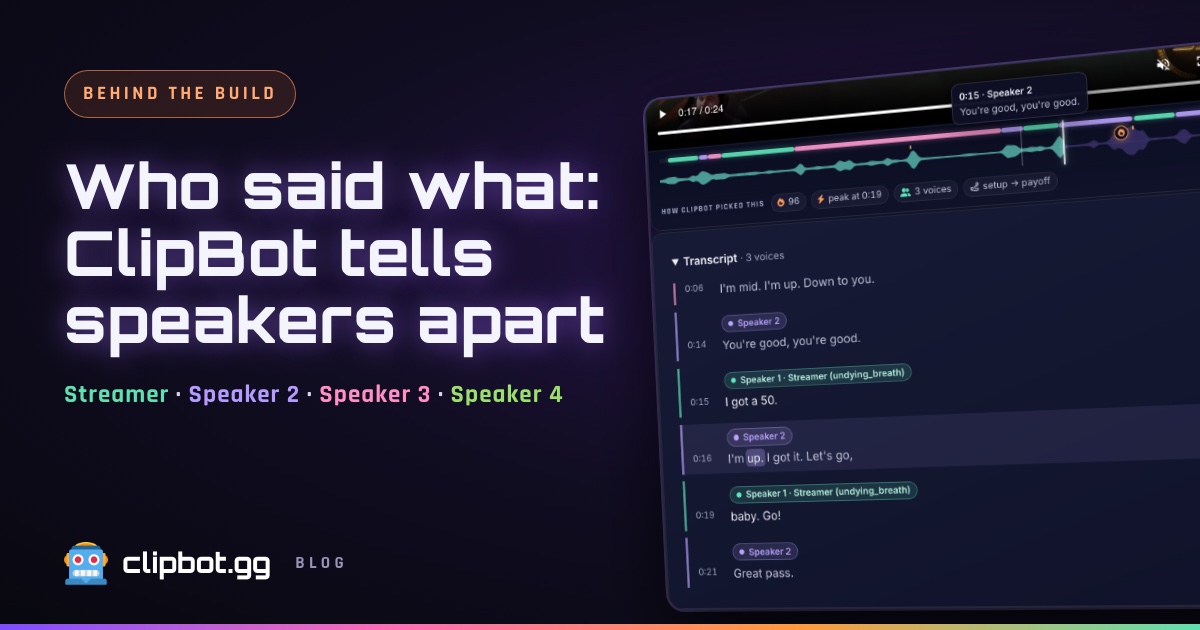
How ClipBot works out whose voice is whose is a story of its own: read who said what: speaker separation.

Since the new editor went live on October 21, 12 streamers have exported 38 Shorts from it. If there’s an edit you still do in another app, tell us: the editor is the part of ClipBot we’ll keep improving fastest.
Questions

Is the ClipBot Shorts editor free?
Yes. The editor is on every plan. Open a broadcast from your dashboard and press Make a Short on any clip, or open one of your Auto Shorts. Exports are 1080×1920 MP4s with no watermark.
Does the preview match the exported Short?
Yes. The same caption engine draws the preview in your browser and renders the export, so captions, effects and timing in the MP4 match what you saw.
What do the Magic edits do?
Seven one-click edits: Remove silences (Light or Tight), Auto zoom, Auto sounds, a Hook title for the first 2 seconds, TikTok-safe language (masks and bleeps swears), Slow-mo payoff and Auto emoji. Each one adds normal layers to the timeline that you can change, and Undo takes it back.
Can I add more of the stream to a clip?
Yes. Press More of the stream and the editor loads the broadcast up to ten minutes either side of the clip. Drag the clip’s ends to pull in what happened before or after, split it into parts, or save a range as a new clip on your broadcast page. A Short can be up to 3 minutes long.
What is a payoff preview?
The Short opens with 2 to 5 seconds of its best moment, then plays the build-up from the start. ClipBot can pick the moment, or you can use the playhead, and you choose a Rewind, Wait for it…, Flash or no transition.
What is the Custom Zones layout?
Up to four capture zones of any shape, drawn on your stream and placed anywhere on the vertical Short, for example your facecam on top, the minimap in a corner and gameplay in the middle. Each zone can have rounded corners, a border and a shadow.
Can I show my Twitch chat on a Short?
Yes. The Chat step puts your stream’s real chat on the Short as it happened, with names in their colours, badges and emotes. It follows your cuts and slow-mo. Styles are Twitch classic, Floating bubbles, Minimal and Hype only.
Can captions be coloured by who is speaking?
Yes. Turn on Colour by speaker in Captions: the streamer keeps the caption style’s colour, Speaker 2 is purple, Speaker 3 pink and Speaker 4 green, and you can change the other speakers’ colours. The timeline’s caption bars use the same colours.
Share this post