Who said what: ClipBot now tells speakers apart
Clip transcripts now label every voice: Speaker 1 · Streamer, Speaker 2, 3 and 4, and the game. Plus a moment timeline under every clip, captions coloured by speaker in the Shorts editor, and 47% of the 5,250 clips labelled so far have more than one voice.
 ClipBot team · · 5 min read
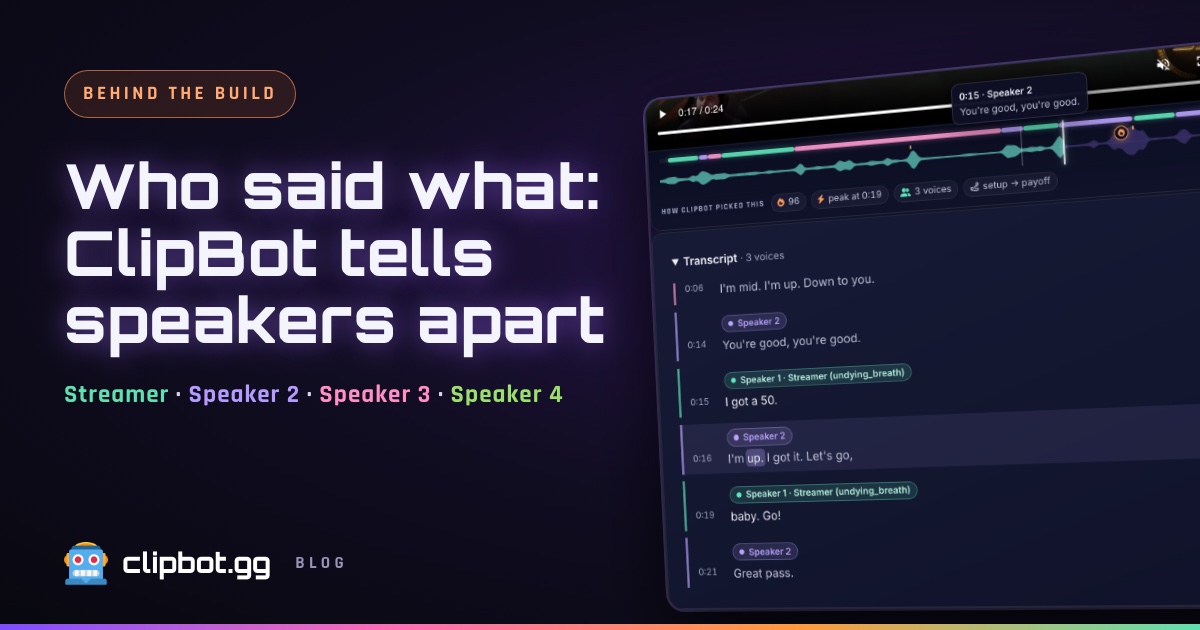
A lot of the best stream moments aren’t one person talking. They’re a duo shouting callouts, a squad celebrating a save, a co-host landing the punchline. Until now, ClipBot’s transcripts flattened all of that into one block of text. Now every clip shows who said what: the streamer, each other voice, and the game.
Who’s who
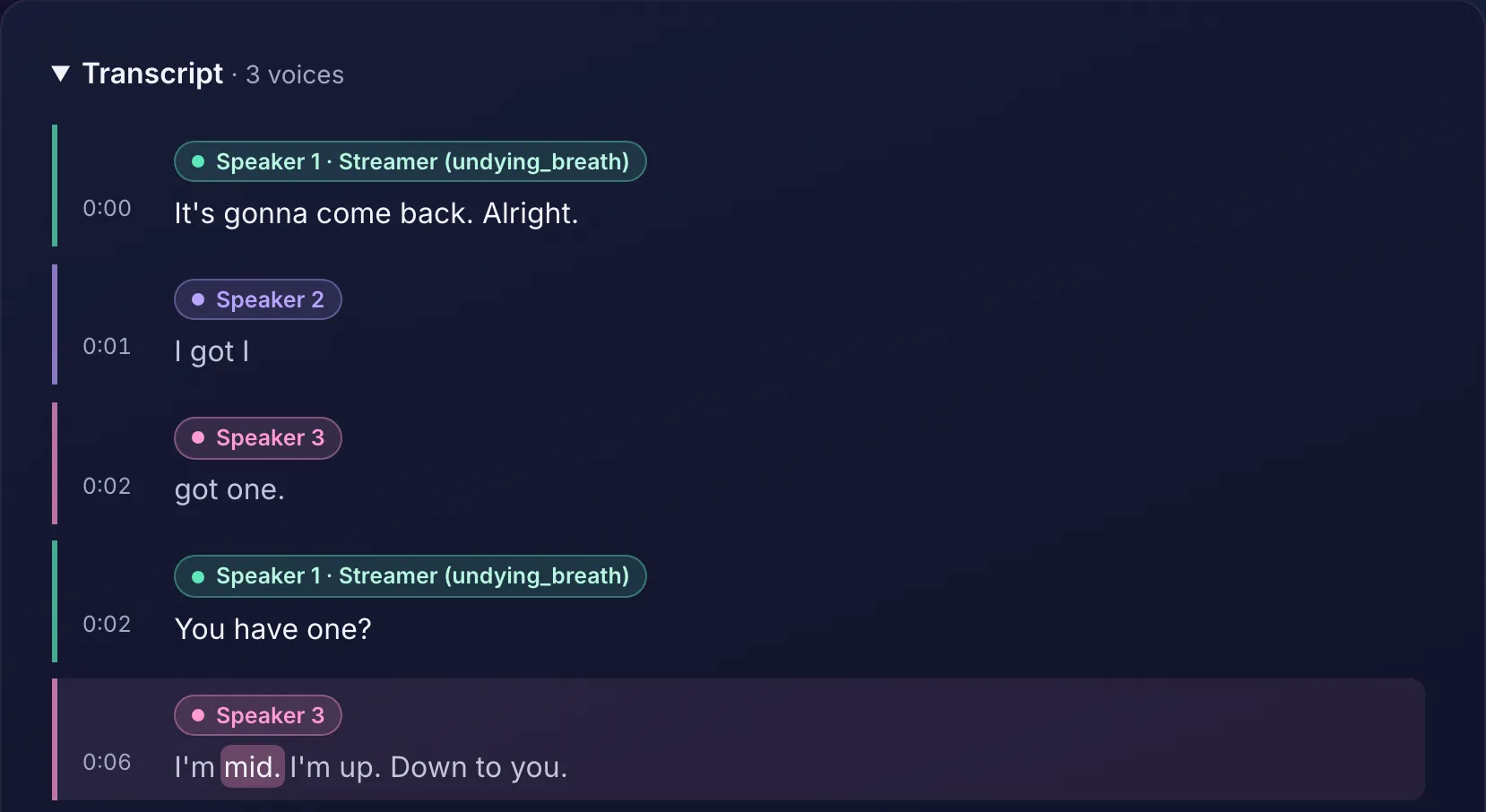
Every clip transcript now puts a coloured label wherever the voice changes:
- Speaker 1 · Streamer (mint) is always the streamer, with their name.
- Speaker 2, 3 and 4 (purple, pink and green) are everyone else: duo partners, teammates on voice chat, co-hosts, guests. They’re numbered by how much they talk.
- Game / other voice (grey) is a voice that clearly isn’t the person on camera, like a game character or text-to-speech.
Click any timestamp and the clip jumps to that line. As the clip plays, the current line and word light up.
How ClipBot tells voices apart
This builds on the speaker separation we first added to stop game voice lines from forcing a clip. It runs NVIDIA’s Nemotron speaker model on our own hardware, so it adds nothing to the cost of a broadcast. Labelling a clip takes about a second.
- Split the voices. The model finds up to four distinct voices in the clip and decides who said each word. A one- or two-word flip in the middle of someone’s sentence is smoothed away.
- Find the streamer. ClipBot learns the streamer’s voice from the whole broadcast and matches it. When that isn’t clear-cut, it checks the webcam: the voice that moves the streamer’s mouth is theirs. The streamer always becomes Speaker 1.
- Spot the game. In gameplay clips, a voice that talks while the face on camera stays still is labelled Game / other voice instead of a person.
The moment timeline
Under every clip player there’s now a strip that shows the shape of the moment:
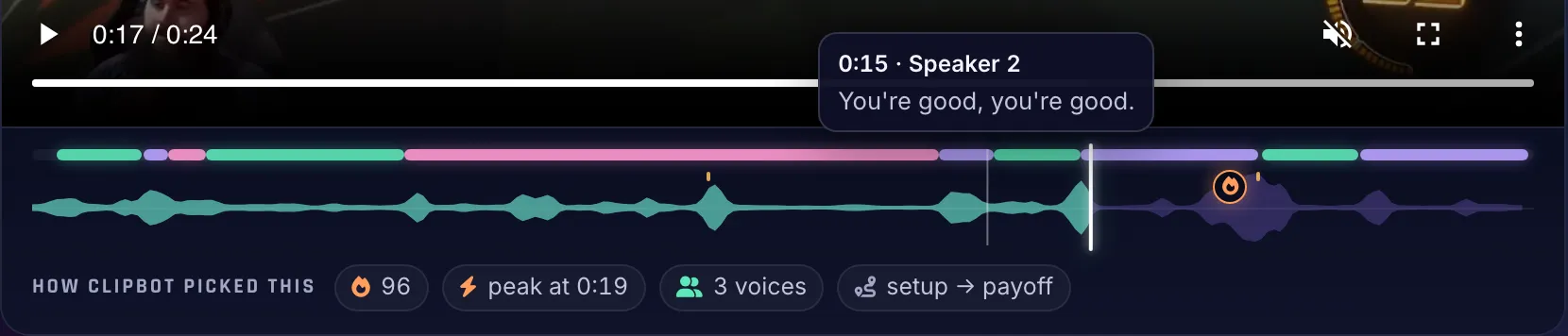
- The speaker lane along the top, in the same colours as the transcript, so you can see the back-and-forth at a glance.
- The energy wave: how loud the clip is, with the peak marked and small ticks on words said much louder than usual. A mic icon marks a “clip it” call.
- A playhead and live transcript. Click or drag anywhere to seek. Hover to read the line at that point.
- How ClipBot picked this: the clip’s score, when it peaks, how many voices are in it, and how the moment is built (like setup → payoff).
A compact version shows in the clip pop-up on Discover, streamer pages, game pages, My Clips and broadcast pages.
Captions in each speaker’s colour
In the rebuilt Shorts editor, the caption track on the timeline is coloured by who is talking, with a legend above it. You can see where your friend takes over before you press play.
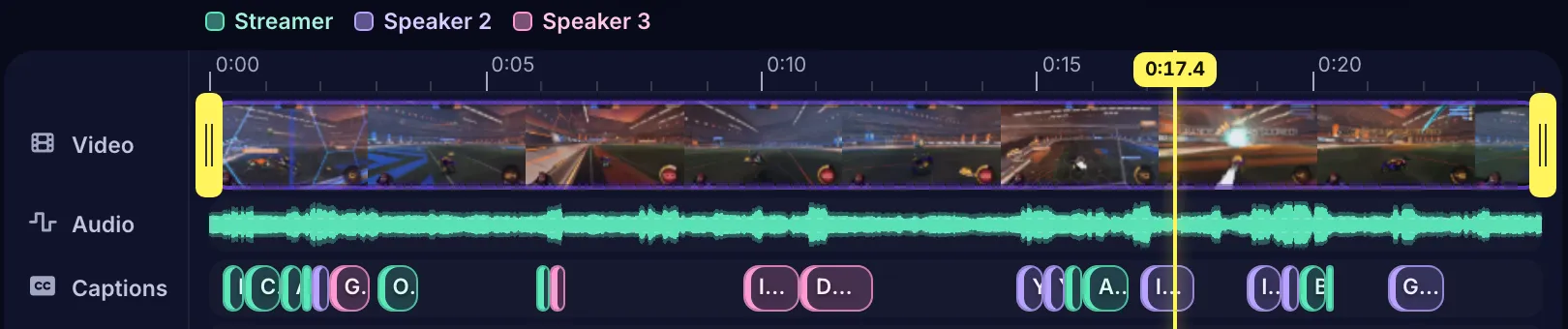
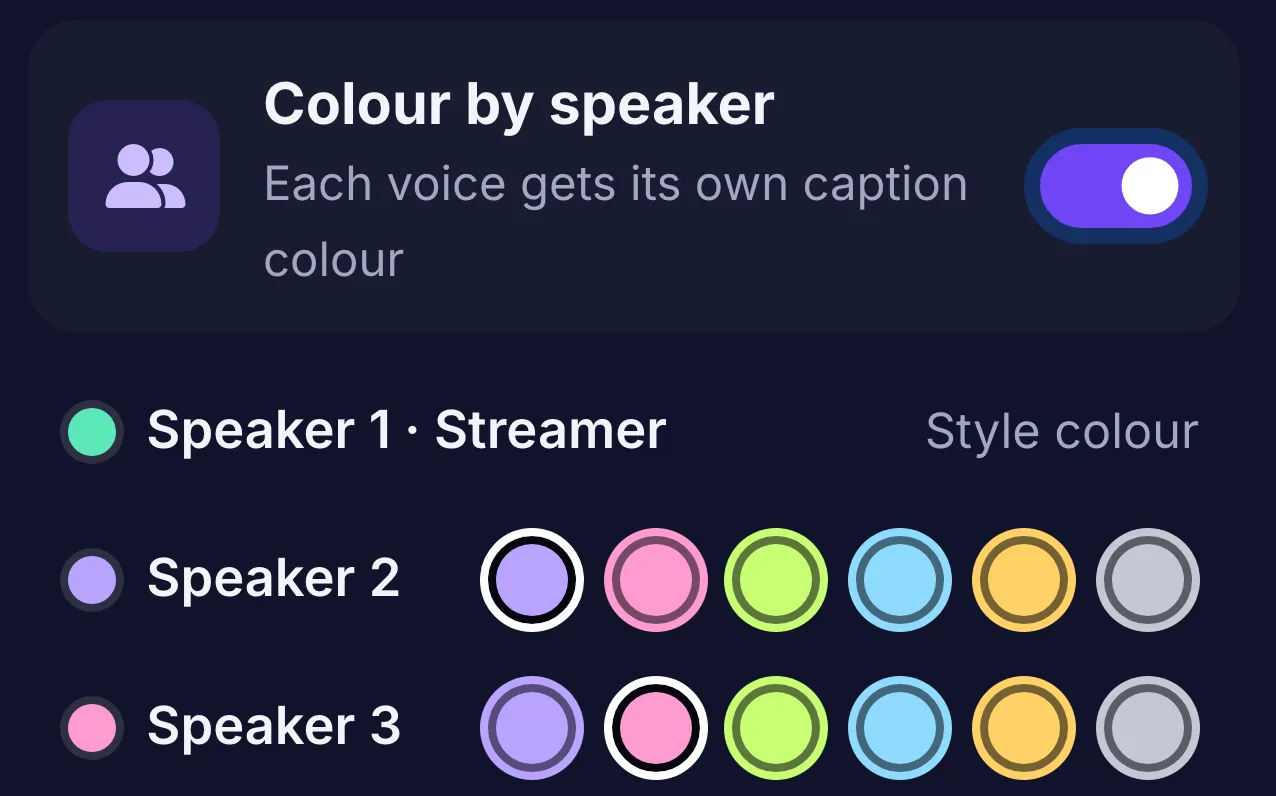
Under Captions → Text there’s a Colour by speaker switch. It appears when a clip has two or more voices. Turn it on and each voice gets its own caption colour: you keep your style’s colour, and every other speaker picks from six. The preview and the exported Short use the same caption engine, so what you see is what you post.
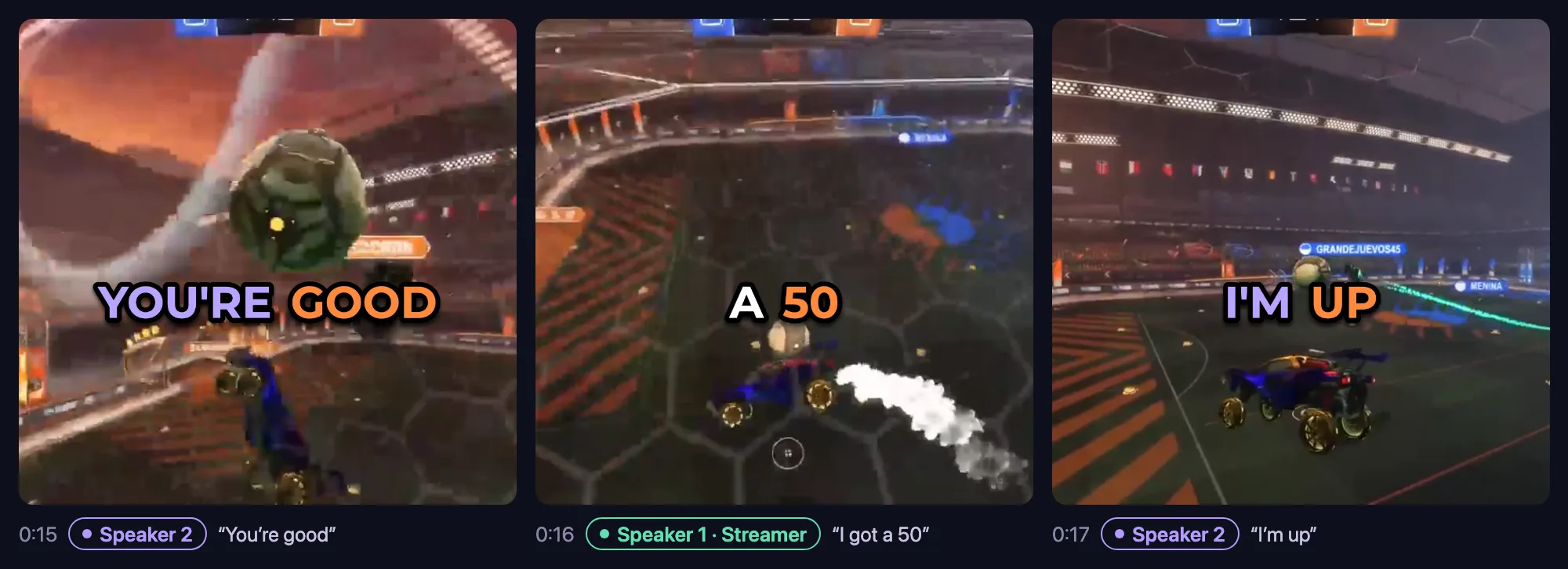
Here’s what that looks like in the Short itself. Three frames from about two seconds of it:
Why it matters
Most clips aren’t a solo
We counted. ClipBot has now labelled the speakers in 5,250 clips from 544 broadcasts. Nearly half have more than one voice.
5,250 clips labelled by October 24, 2026. ClipBot keeps at most four voices per clip.
That’s co-streams, duos, squads on voice chat and podcasts. A transcript that says who’s talking reads like the conversation it was, and captions that change colour carry the back-and-forth even for someone watching with the sound off.
Better picks
The voices also feed how ClipBot picks clips. When it scores a broadcast, it knows which lines came from the streamer and which came from someone else: teammates, game characters, text-to-speech. And a “clip it” only counts when the streamer says it. A game shouting “Someone clip this!” doesn’t.
Long broadcasts, in pieces
Some streams run all day. Our transcription loads a broadcast’s audio in one go, and past about 18 hours the audio is too big to load at once. A handful of 20 to 28 hour broadcasts failed because of it.
Broadcasts over 16 hours are now transcribed and diarized in pieces of up to 8 hours. Each cut lands on the quietest half second near the boundary, and the pieces overlap by 8 seconds so no word is lost or doubled. The voices in each piece are matched to the ones before, so the streamer stays the same speaker from the first hour to the last. Anything shorter goes through the same single pass as before.
Try it
Open any clip on Discover and look under the player. If there’s more than one voice, the transcript header says how many (like “3 voices”) and every line has its speaker. Your own clips get labelled automatically as they’re made.
Questions
Can ClipBot tell who is talking in a clip?
How does ClipBot know which voice is the streamer?
How do I colour Shorts captions by speaker?
What is the moment timeline on ClipBot clips?
How many Twitch clips have more than one voice?
Does ClipBot work on very long streams?
Keep reading
 Behind the build
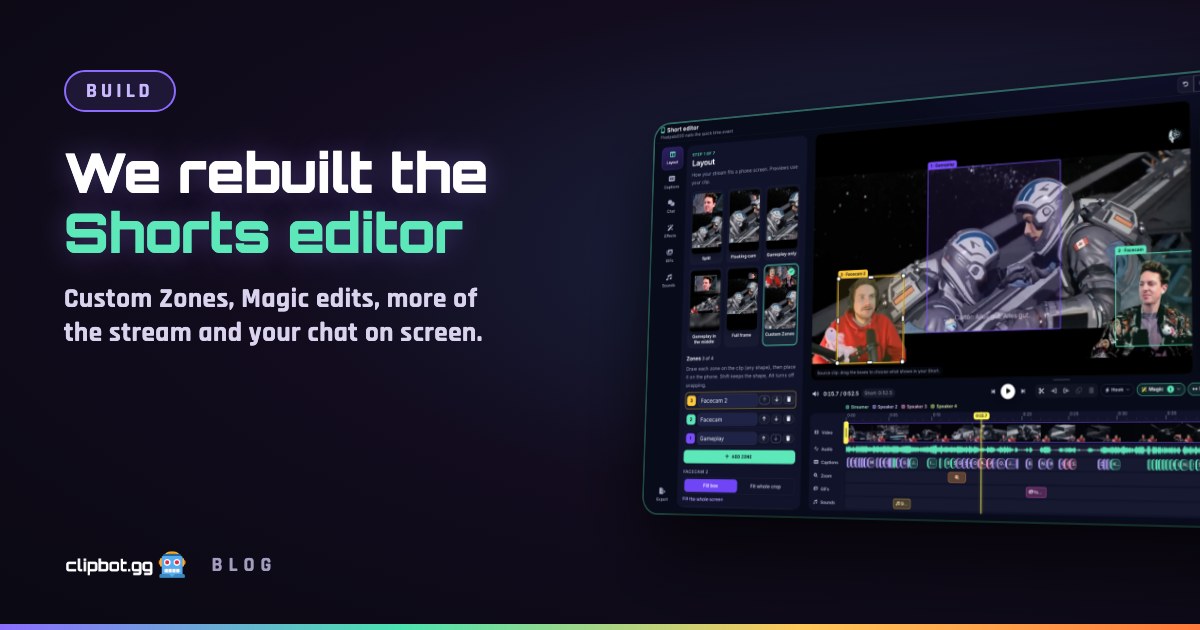
We rebuilt the Shorts editor: preview = export, Magic edits, more of the stream and your chat on screen
Oct 24, 2026 · 8 min read
Behind the build
We rebuilt the Shorts editor: preview = export, Magic edits, more of the stream and your chat on screen
Oct 24, 2026 · 8 min read
 Data
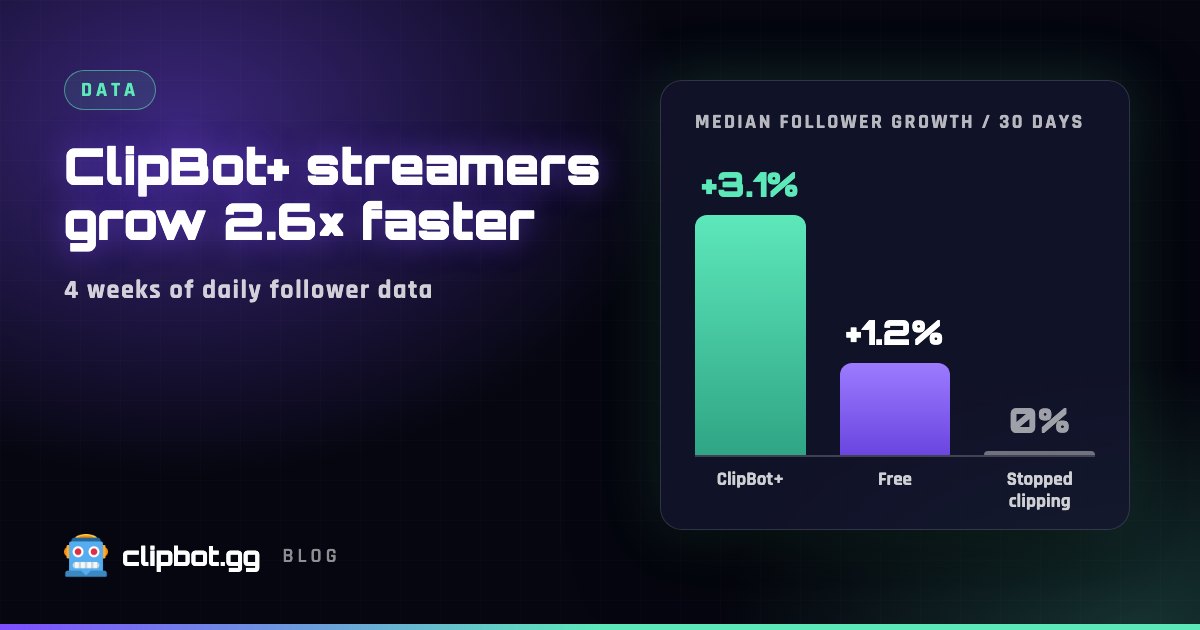
ClipBot+ streamers are growing their Twitch followers 2.6× faster
Oct 20, 2026 · 5 min read
Data
ClipBot+ streamers are growing their Twitch followers 2.6× faster
Oct 20, 2026 · 5 min read
 News
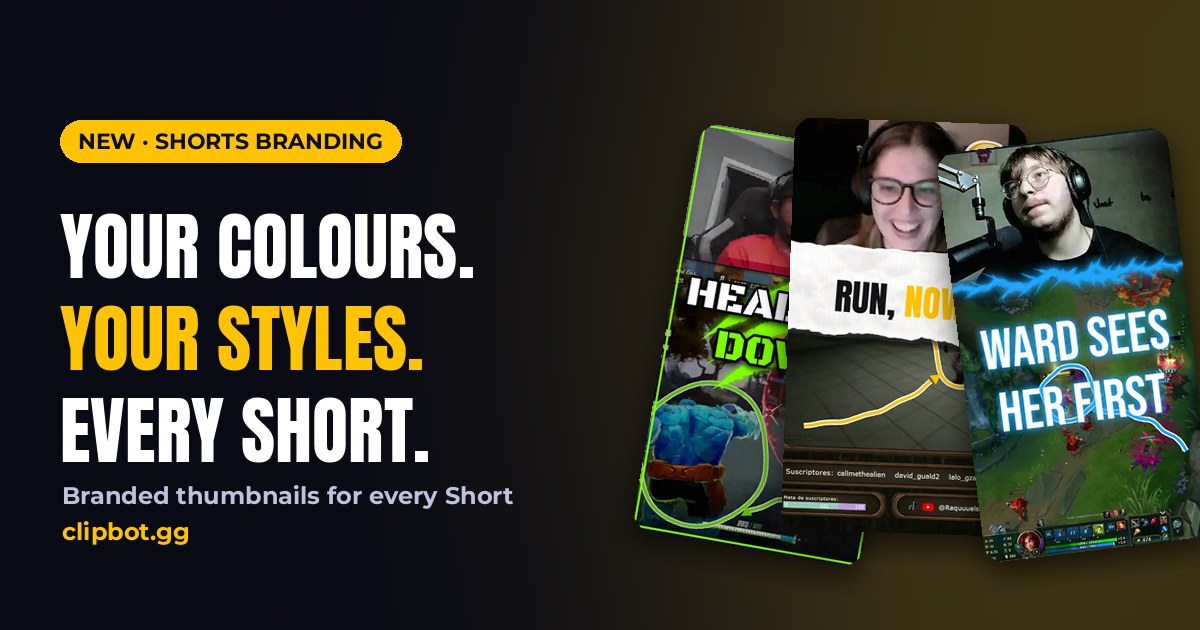
Shorts branding: your colours, styles, webcam layout and edit on every Short
Oct 18, 2026 · 6 min read
News
Shorts branding: your colours, styles, webcam layout and edit on every Short
Oct 18, 2026 · 6 min read