How do you turn a Twitch stream into TikToks and YouTube Shorts in 2026?
A practical guide to turning Twitch stream moments into TikToks, YouTube Shorts and Reels: which moments work vertically, how long to cut them (the median ClipBot Short was 29.8s), a hook in the first 2 seconds, captions, webcam layouts, branding and how often to post. The manual way, and how ClipBot made 4,932 Shorts for streamers in October.
 ClipBot team · · 8 min read
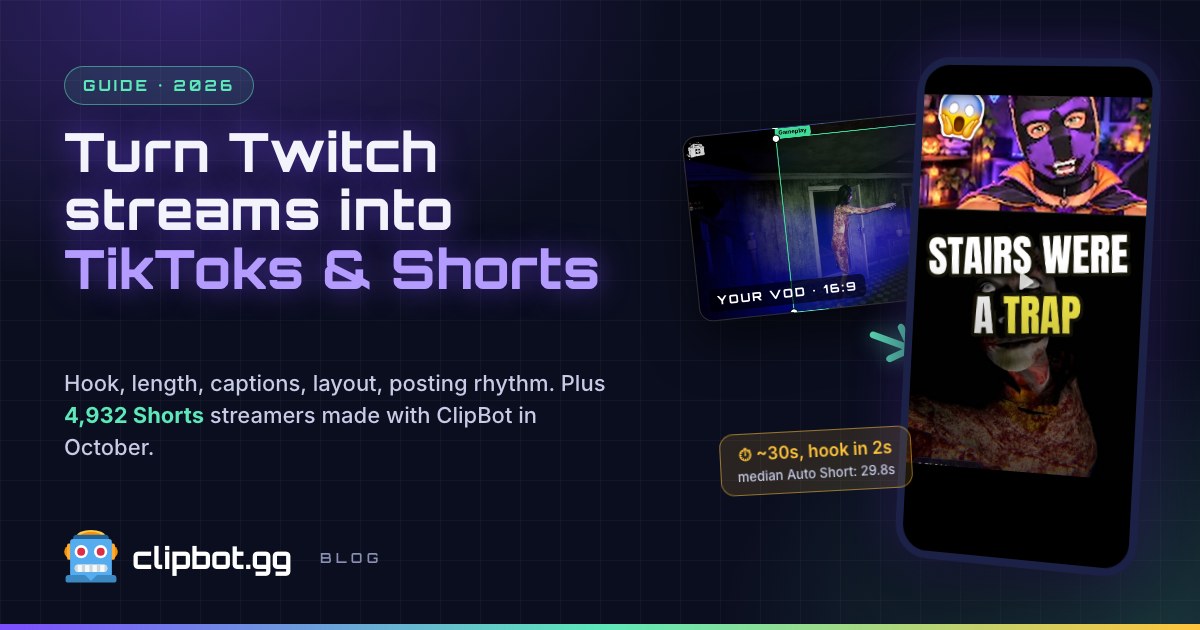
Based on 4,932 Auto Shorts and 381 editor exports made by Twitch streamers on ClipBot, October 1–31, 2026.
You streamed for four hours. Somewhere in there is the 30 seconds that would do numbers on TikTok, and it’s buried in a VOD nobody outside your community will ever scrub through. That’s the whole problem with growing from Twitch: the good stuff happens live, and the people who’d follow you are scrolling a vertical feed. This guide is how you get the moment from one to the other, the manual way and the fast way.
What does it take to turn a Twitch stream into a TikTok or Short?
Five jobs, every single time. Skip one and the Short flops.
- Find the momentOne that makes sense to someone who’s never seen you.
- Cut it tight20–45 seconds, payoff included, dead air out.
- Go vertical9:16 with your facecam and the gameplay that matters.
- Hook + captionsA reason to stay in 2 seconds, words on screen for sound-off scrollers.
- Export and post1080×1920 MP4, a caption, a couple of hashtags. Hit post.
By hand, that’s an editing app, a VOD download and about an evening per Short. With ClipBot, steps 1 to 4 are done before you’ve logged off, and step 5 is a download button. We’ll show both.
Which stream moments work as vertical videos?
The ones that land cold. A stranger on the For You page doesn’t know your lore, your teammates or the inside joke from last Tuesday. They get one second to decide. Moments that work:
- Reactions you can see. A jumpscare, a scream, a stunned silence. Your face does the explaining.
- Plays with a clear before and after. 1v3 clutch, the shot through the window, the whiff that still gets the kill.
- Funny fails and banter. Plans going wrong in real time. In October, funny moments were the biggest category ClipBot clipped by a mile.
- A line that stands alone. The roast, the confession, the “wait, that was YOU?”.
What doesn’t work: slow builds that need five minutes of setup, long strategy talk, and you being angry about dying. Chat might love the tilt. Strangers scroll.
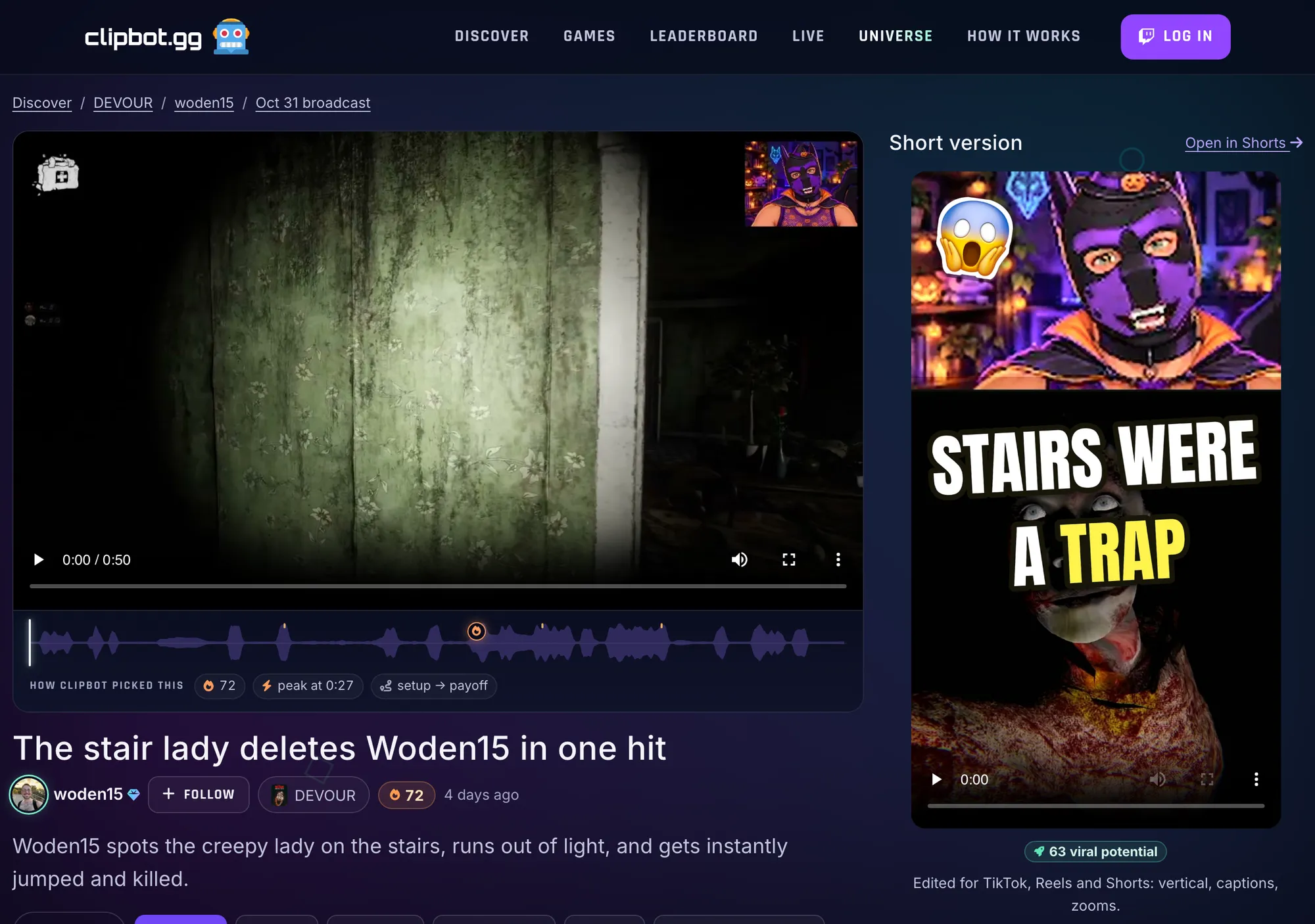
Here’s a real one. woden15 was streaming DEVOUR on Halloween night, ran out of light on the stairs and got deleted in one hit. ClipBot ranked it the #1 moment of a 4-hour broadcast and turned it into a Short titled “STAIRS WERE A TRAP”:
How long should a Twitch Short or TikTok be?
Around 30 seconds. Long enough for the setup and the payoff, short enough that people watch it twice. That’s not a guess: it’s where streamers’ Shorts actually land. The median Auto Short in October was 29.8 seconds, and 74.9% fell between 20 and 45. When streamers trimmed Shorts themselves in the editor, they went even tighter: a median of 27.8 seconds, with 91.1% under 45.
Share of each group. 4,932 Auto Shorts and 381 editor exports, October 1–31, 2026.
Our take: 20–45 seconds for a gameplay moment, up to 60 when it’s a story that needs room to breathe. 95.1% of Auto Shorts stayed under a minute. If you’re over that, you probably have two Shorts, not one.
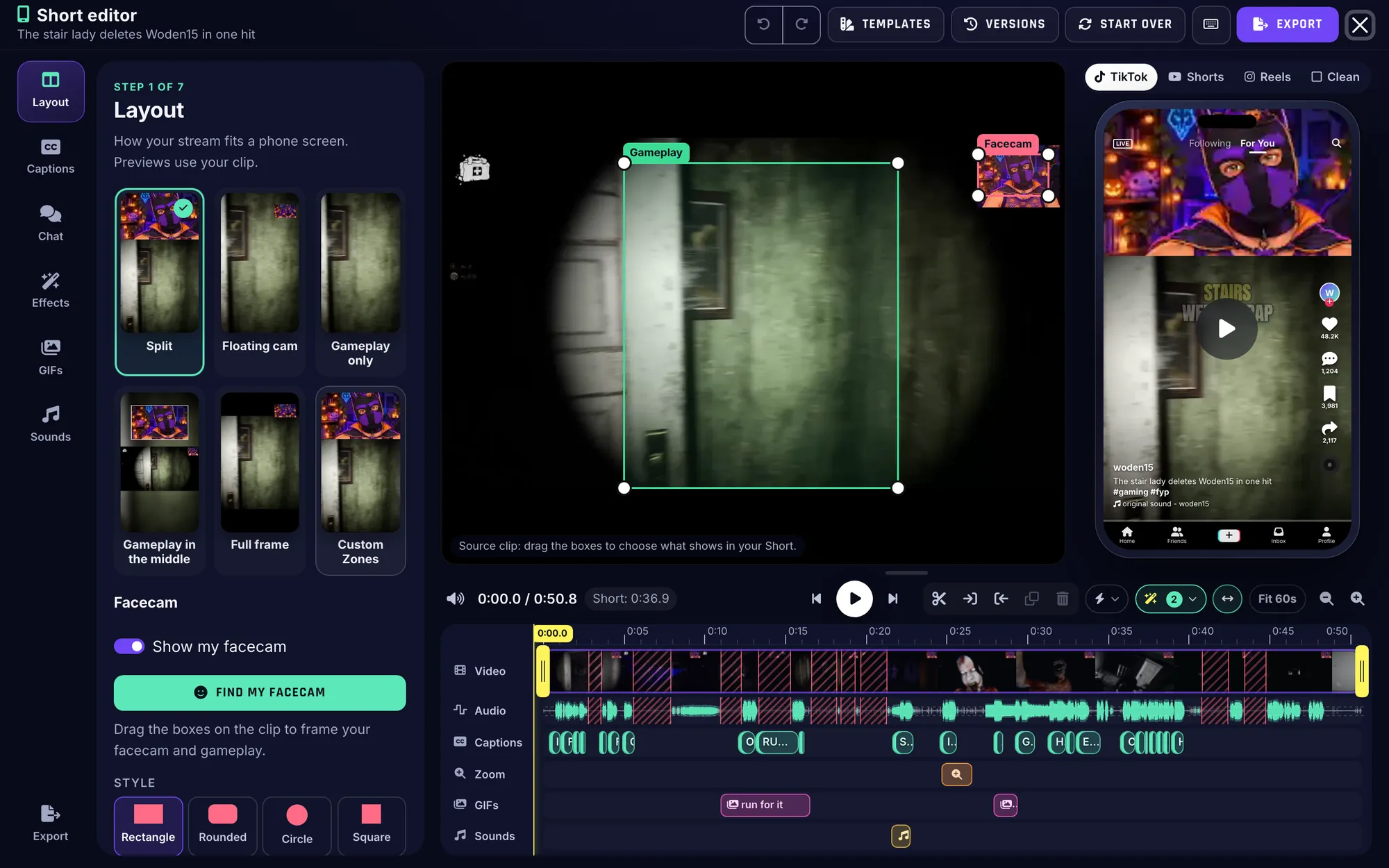
Most of the trim comes from cutting dead air, not the moment. woden15’s clip ran 50.8 seconds. Removing nine pauses took it to 36.9 without losing a single beat of the scare:
The nine pauses Remove silences found in woden15’s clip (pink), 13.9 seconds in all. The scream stays.
What should happen in the first 2 seconds?
Something that makes the thumb stop. On a vertical feed the swipe decision happens almost instantly, so the opening can’t be you loading in or saying “okay so”. Three hooks that work for stream clips:
- A hook title. Two to four punchy words on screen from the first frame: “STAIRS WERE A TRAP”, “TRIPLE NUKE”, “WRONG TOOL”. Every one of ClipBot’s 4,932 Auto Shorts in October opened with one.
- The payoff first. Flash 2 to 5 seconds of the best bit, then rewind to the build-up. People stay to see how you got there.
- Start late. Cut in mid-action. The first line of the Short should already be the moment, not the run-up.
The shape of a ~30-second stream Short: a hook you can read in 2 seconds, a build-up that sets up the moment, the payoff, and out before it drags. End on the reaction, not the cool-down.
Do Shorts need captions?
Yes. Lots of people scroll with the sound off, and even with sound on, big animated captions keep eyes on the screen. Word-by-word captions that highlight what you’re saying as you say it are the standard for stream Shorts now. Keep them to a few words at a time, put them where they don’t cover your face or the action, and make them big enough to read on a phone at arm’s length.
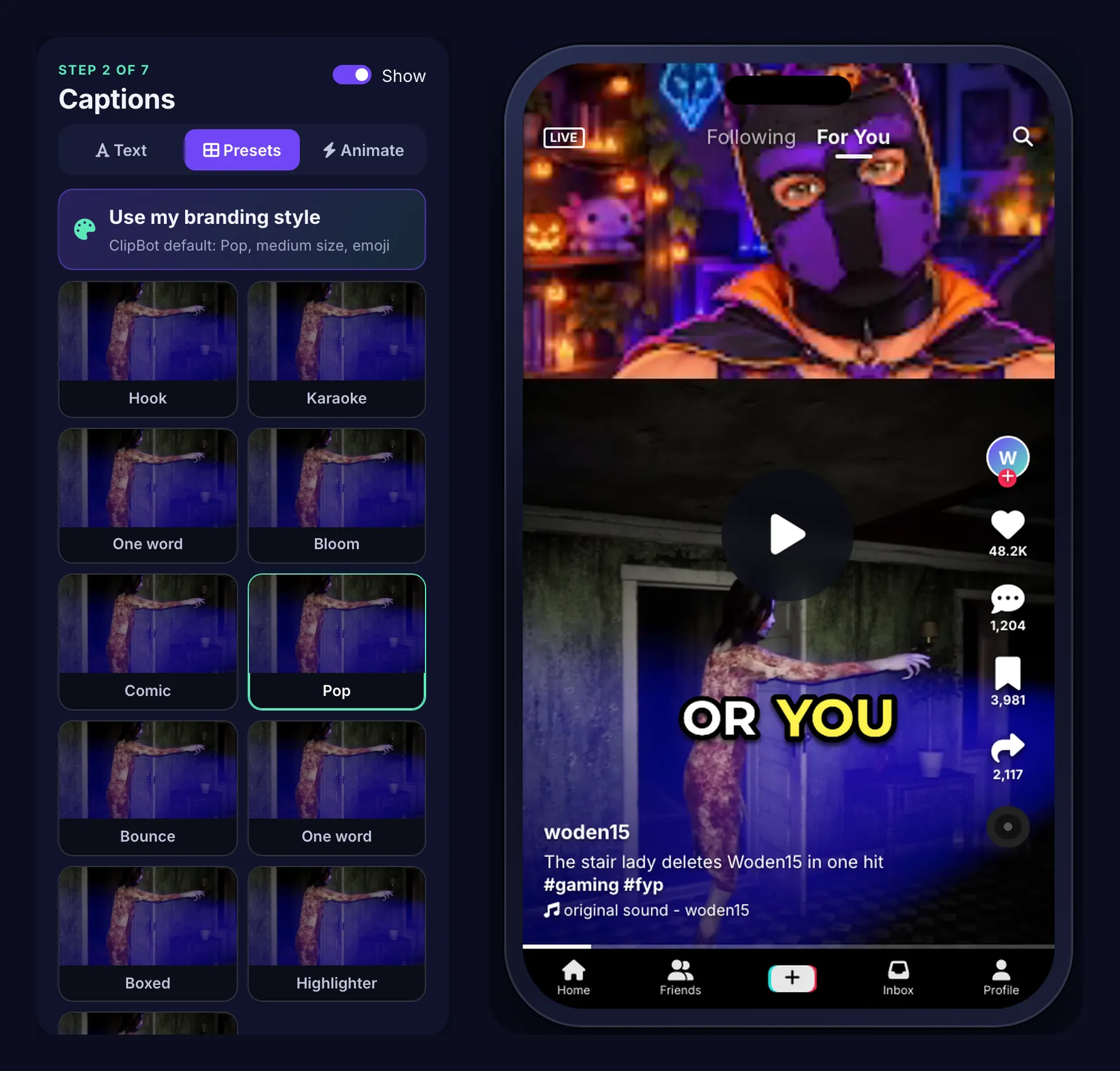
In ClipBot every Short comes captioned from what was said on stream, and the editor has a stack of animated styles (Pop, Karaoke, Bounce, Comic, Highlighter, Hook and more) that you can switch with one click. The highlighted word picks up your brand colour.
What’s the best layout for webcam and gameplay?
If you stream with a facecam, use it. Split screen, facecam on top and gameplay below, is the default for a reason: viewers on a phone connect with faces, and your reaction tells them how to feel about the gameplay. Of the 381 Shorts streamers exported from the editor in October, 72.4% kept the facecam on and 55.1% used Split.
381 Shorts exported from the ClipBot editor, October 1–31, 2026.
- Split for reactions, horror, banter, anything where your face is half the moment.
- Floating cam when the gameplay needs the whole screen (racing, a big team fight) but you still want your face in a corner.
- Gameplay only for pure skill clips, or if you don’t use a cam.
- Gameplay in the middle or Full frame when you can’t crop without losing the action, like a wide map or a full HUD.
Whatever you pick, frame the gameplay around the action, not the minimap. A 16:9 stream squeezed into 9:16 means choosing what matters.
How should you brand your Shorts?
Lightly. One colour, one caption style, one thumbnail look, used every time, so a viewer who’s seen two of your Shorts recognises the third before they see your name. Skip the big logos and end cards; they eat screen and people swipe past them. Your face and your @ in the caption do the real branding.
ClipBot keeps it consistent for you: set your colours, thumbnail styles, webcam layout and caption size once on the Shorts branding page and every new Short follows it. We went deep on that in Shorts branding: your colours, styles, webcam layout and edit on every Short.
How do you do it in ClipBot?
This is the part we’re proud of. You stream. ClipBot does the rest.
1. Your moments are found and your Shorts are made
Sign in with Twitch and ClipBot clips your broadcasts after you stream. Your best moments come back as Auto Shorts: vertical, captioned, hooked and branded. In October that was 4,932 Shorts for 246 streamers, about 4.3 per broadcast. They show up on your broadcast page, best first:
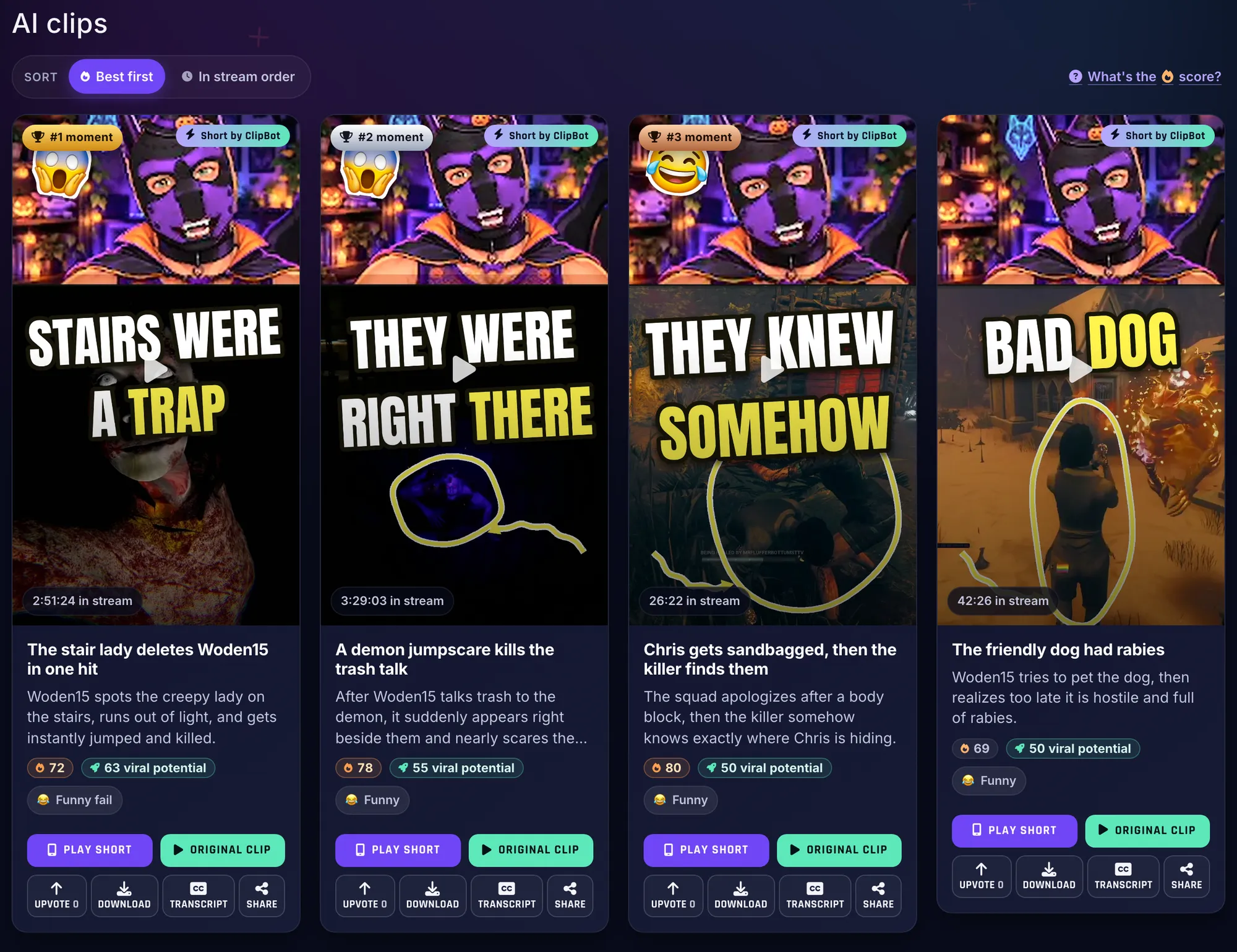
Want the full story on how they’re built? See Auto Shorts: your top three moments, turned into ready-to-post vertical videos.
2. Tweak it in the Shorts editor (or don’t)
Plenty of Auto Shorts are good to go as they are. When you want to make one yours, hit Edit Short and the editor opens with everything ClipBot did as layers on a timeline: layout, captions, zooms, GIFs and sounds. Change the layout, swap the caption style, drag the trim handles. Or open the Magic menu for one-click edits:
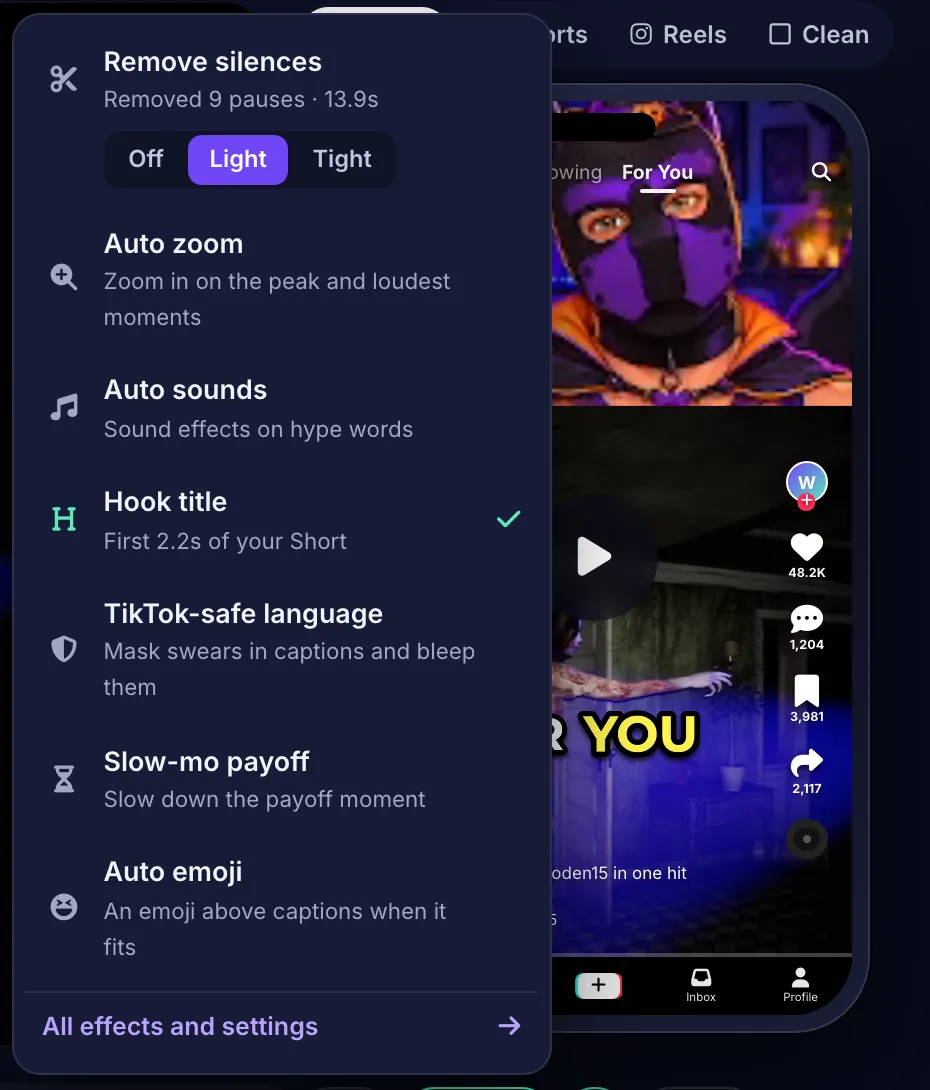
TikTok-safe language deserves a shout: it masks swears in the captions and bleeps them, so a heated moment doesn’t get your Short buried. Every edit is undoable. The full tour is in We rebuilt the Shorts editor.
3. Export, then post it yourself
The Export step shows exactly what’s going in the Short, with TikTok, YouTube Shorts and Reels previews. Export gives you a 1080×1920 MP4 with no watermark. Auto Shorts can be downloaded straight from the broadcast page too, along with the cover image, and Copy caption + hashtags puts a ready-written caption on your clipboard.
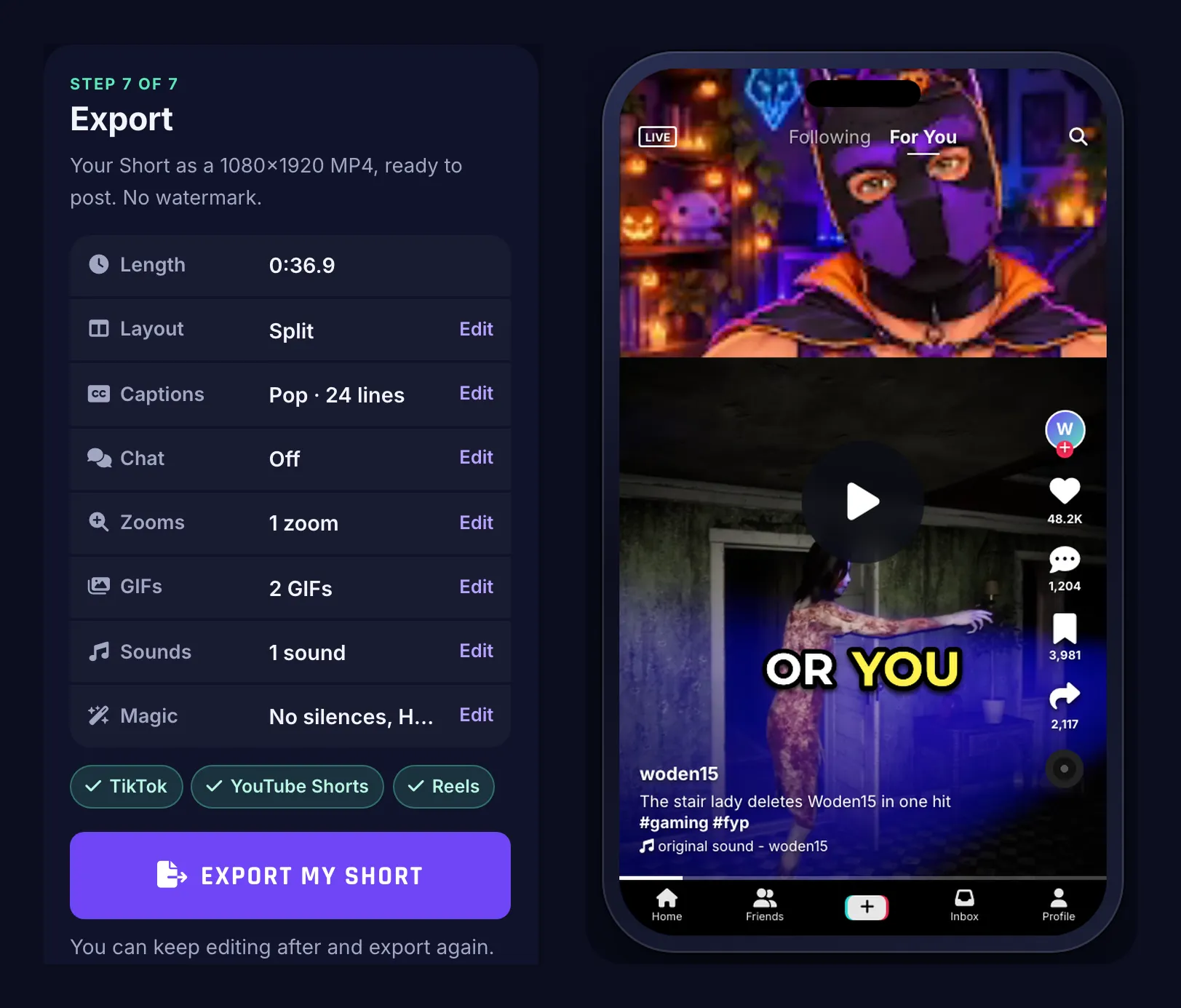
Then open TikTok, YouTube or Instagram on your phone, upload the MP4, paste the caption and post. That’s the whole loop. Here’s how it looks on a phone, on the broadcast page and the clip page:
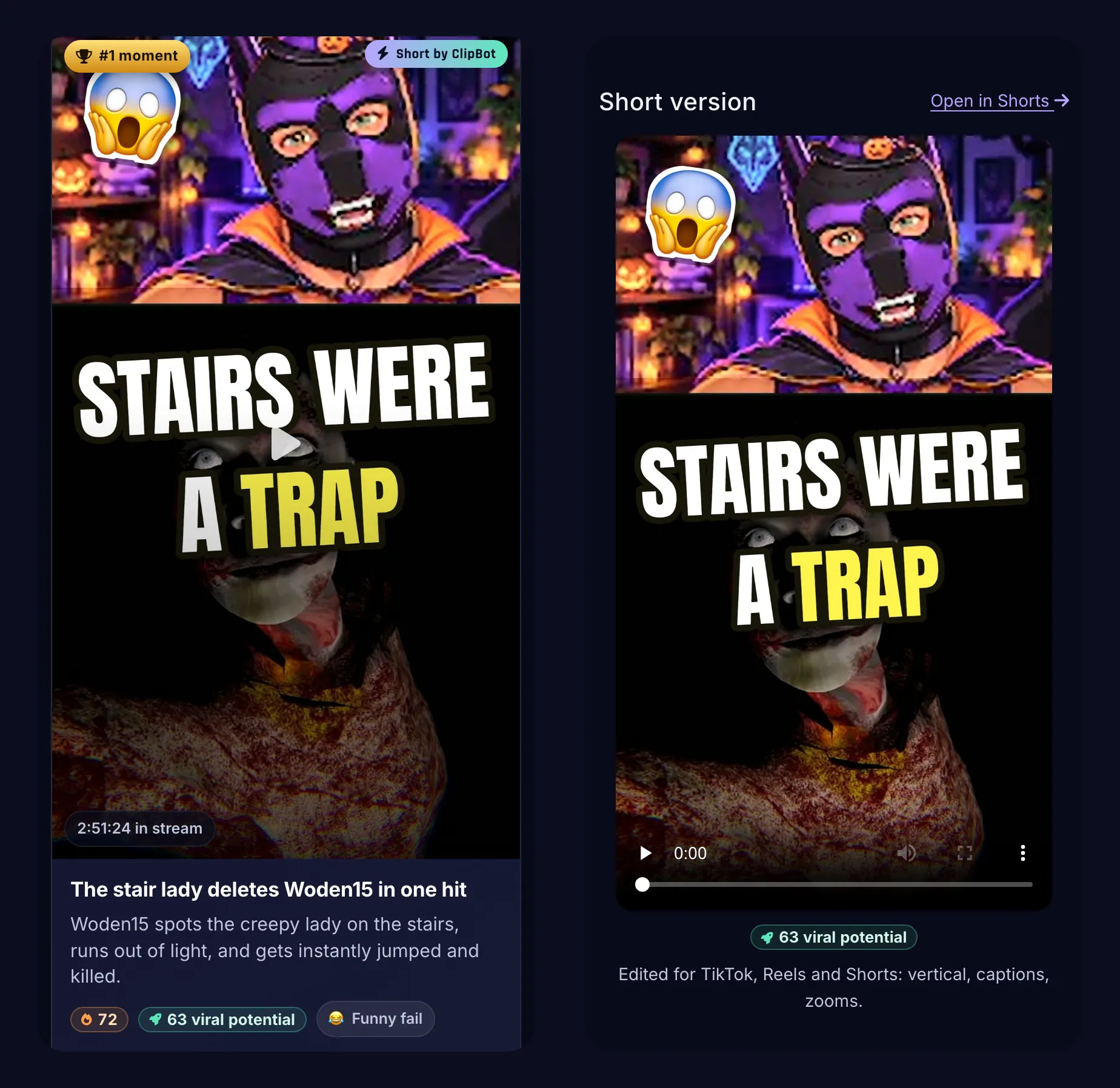
How do you do it manually?
Totally doable, and worth knowing even if you use a tool. Here’s the honest version:
- Find the moment. Scrub your VOD, or check your Twitch Clips tab for what viewers clipped. Note the timestamps.
- Get the footage. Download the clip or the VOD section from your Twitch dashboard (VODs expire, so don’t wait).
- Reframe it. In a mobile-friendly editor, set a 1080×1920 canvas, put your facecam on top and crop the gameplay below.
- Trim. Cut to 20–45 seconds, start mid-action, end on the reaction. Cut the pauses.
- Captions and hook. Auto-generate captions, fix the words they got wrong, style them, add a 2–4 word hook title for the first 2 seconds.
- Export and post. Export at 1080×1920, write a caption, add a few hashtags (#gaming plus the game), post.
| Job | By hand | With ClipBot |
|---|---|---|
| Find the moments | Scrub the VOD, or hope chat clipped it | Done after every broadcast, ranked best first |
| Vertical layout | Crop facecam and gameplay yourself | Split by default, 7 layouts to switch between |
| Captions | Generate, fix and style them | Captioned from what was said, animated styles in one click |
| Hook | Write and place it | On every Auto Short, editable |
| Cut the dead air | Snip pauses one by one | Remove silences, Light or Tight |
| Export | Render settings, then upload | 1080×1920 MP4, no watermark, plus caption and hashtags |
| Post | You | Still you |
The manual way gives you total control and costs you an evening per Short. If you love editing, go for it. If you’d rather be streaming, that’s what we built ClipBot for.
How often should streamers post Shorts?
Every day if you can, 3–5 times a week if you can’t. Consistency beats volume: a steady drip of good Shorts teaches the algorithm who your audience is. A stream gives you a few Shorts, so one broadcast can cover two or three days of posting. A simple rhythm that works:
| When | Post | Why |
|---|---|---|
| Day after a stream | Your #1 moment | Strongest Short while the stream is fresh, links people to the VOD |
| Next 2 days | Moments #2 and #3 | Keeps you in the feed between streams |
| Before you go live | Your best Short of the week | Gives new viewers a reason to check the stream |
| Every week | Look at what did best | Make more of that kind of moment |
Post the same Short to TikTok, YouTube Shorts and Reels. Same MP4, three chances. And put your Twitch name in your bio on all three, so the people who like the Short know where to find you live.
Try it
Sign in with Twitch and ClipBot clips your next broadcast, Shorts included. Open your broadcast page, pick the Short you like, export it and post it. Your best moment of the night, on the For You page by breakfast. GG.
Questions
How do I turn my Twitch stream into TikToks?
How long should a Twitch clip be for TikTok or YouTube Shorts?
What is the best layout for gaming Shorts with a webcam?
Can ClipBot post Shorts to TikTok and YouTube for me?
How many Shorts does ClipBot make per stream?
How often should Twitch streamers post Shorts?
Keep reading
 Data
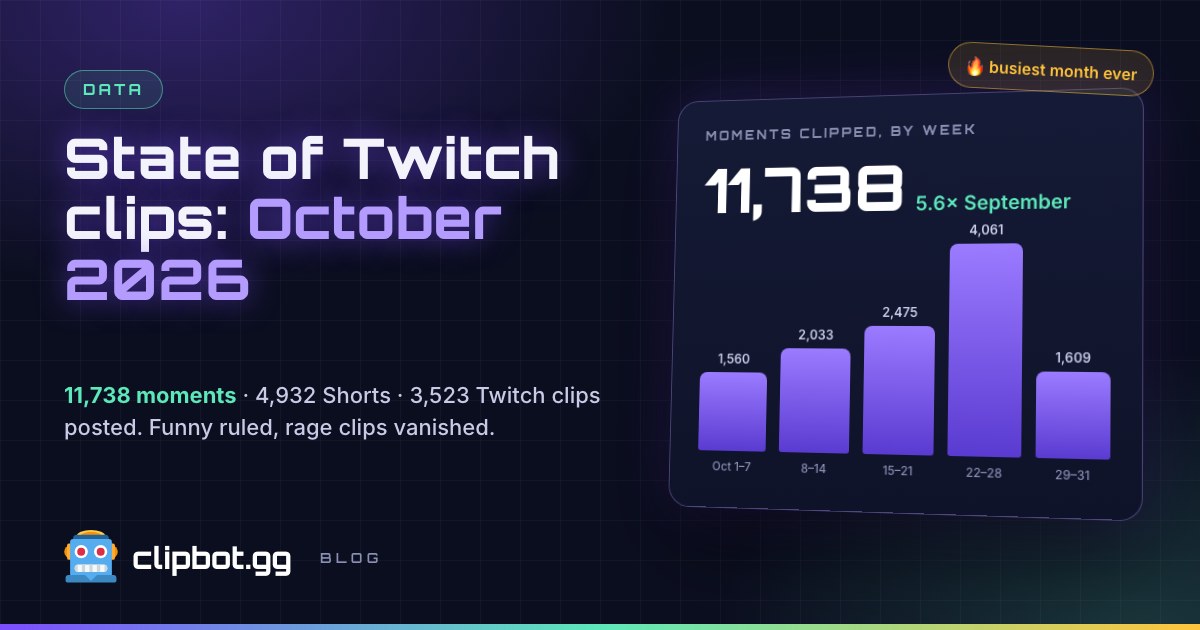
What happened on Twitch in October 2026? ClipBot’s monthly clips report
Nov 2, 2026 · 7 min read
 News
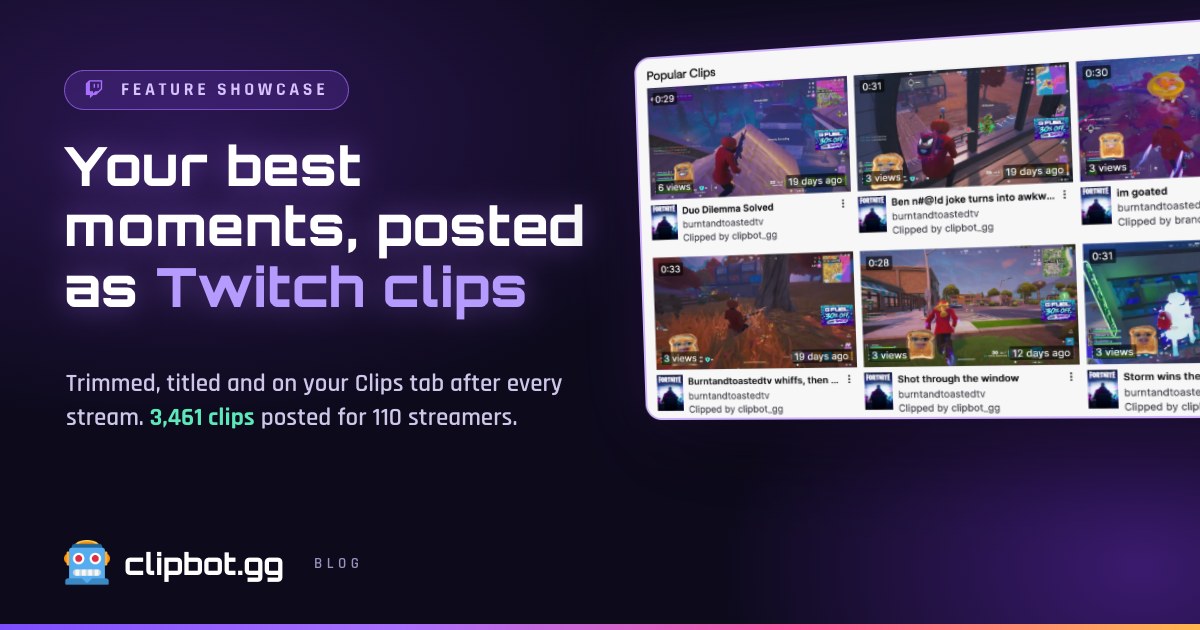
How do you post your best stream moments as Twitch clips automatically? (2026)
Oct 30, 2026 · 5 min read
 News
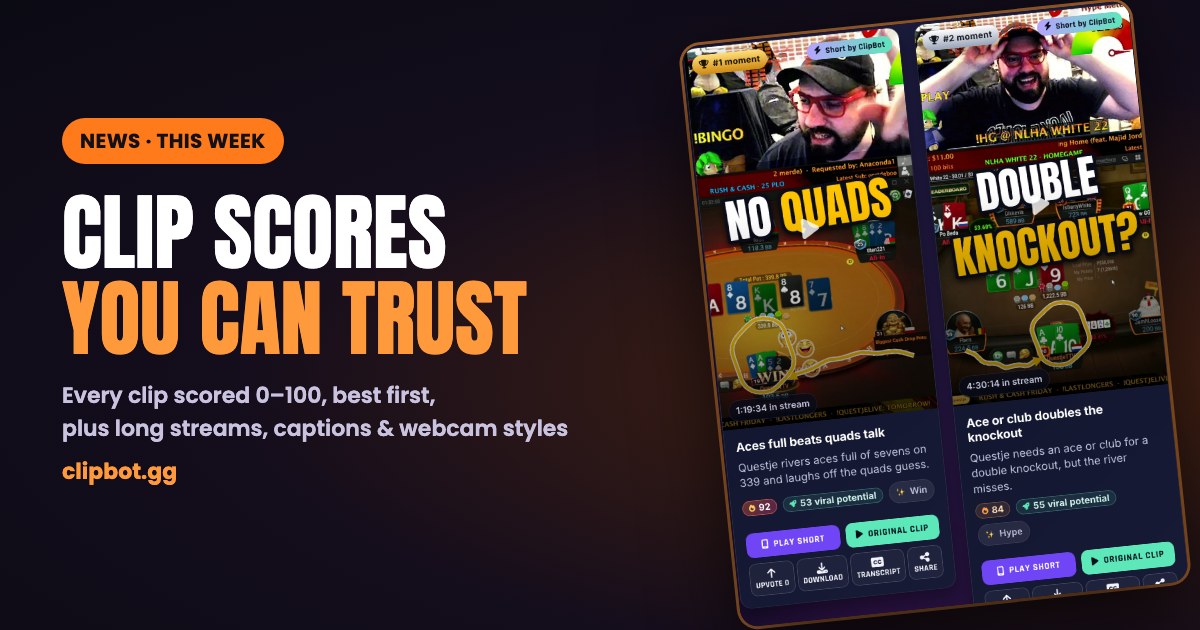
Clip scores you can trust (and everything else new this week)
Oct 27, 2026 · 5 min read