What’s new on ClipBot this week? Sharper clips, call phrases and a bigger sound library
Clips now come straight from your broadcast, so they match your stream’s quality exactly. Shorts fit your webcam’s real shape. Say “clip the last minute”, “clip that story” or your own catchphrase and ClipBot keeps it. Plus 143 sounds in the editor, recent broadcasts first on profiles, and the iPhone app on the App Store.
 ClipBot team · · 6 min read
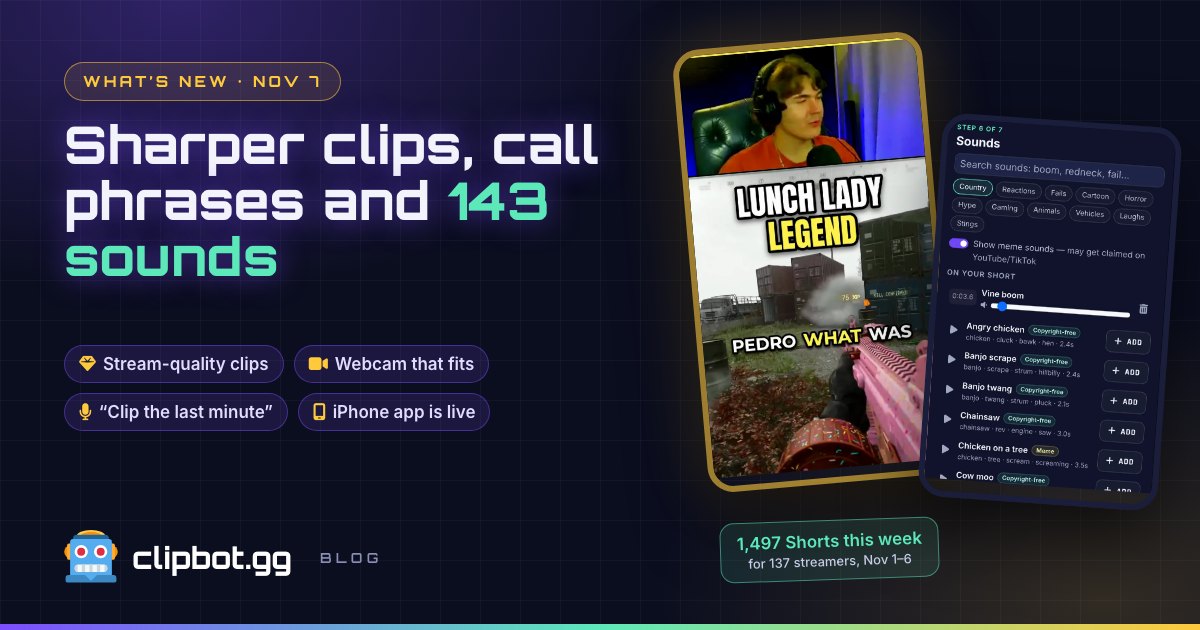
Shipped November 1–6, 2026. In that same week ClipBot clipped 3,456 moments from 323 Twitch broadcasts and made 1,497 Shorts for 137 streamers.
This was one of those weeks where we kept saying “ok, one more thing” and then shipped it. Some of it you’ll see right away, like a fatter sound library and your phone’s new favourite app. Some of it you’ll feel without noticing: clips that look like your stream again, and a webcam panel that finally stops chopping off the sides of your cam. Here’s all of it.
Why do my ClipBot clips look sharper now?
Because they’re your broadcast. Not a copy of it, not a squashed version of it: the exact video your viewers watched, cut at the moment. Same resolution, same frame rate, same quality you streamed at.
Before this week, every clip went through one more round of compression on the way out. You’d mostly not notice. Then you’d hit a smoke grenade, a snowstorm or a fast flick, and the clip got just a bit mushier than the VOD. That’s gone. If your stream looked crisp, your clip looks crisp. If you streamed at 1080p60, you get 1080p60.
We’re honestly a bit annoyed we didn’t do it sooner.
How do Shorts handle my webcam now?
They fit your webcam, not a one-size-fits-all box. ClipBot looks at the shape of your facecam and sizes the top panel of the Short to match. Got a wide cam? You get a wider, shorter panel: the whole shot, no sides chopped off, and less zoomed in, so your face isn’t blown up past what your cam actually captured. The panel takes less of the screen, which gives the gameplay more room. Square or tall cams keep the layout they had.
Here’s the top of one of LavishTactics’ Call of Duty Shorts, the same moment rendered both ways:
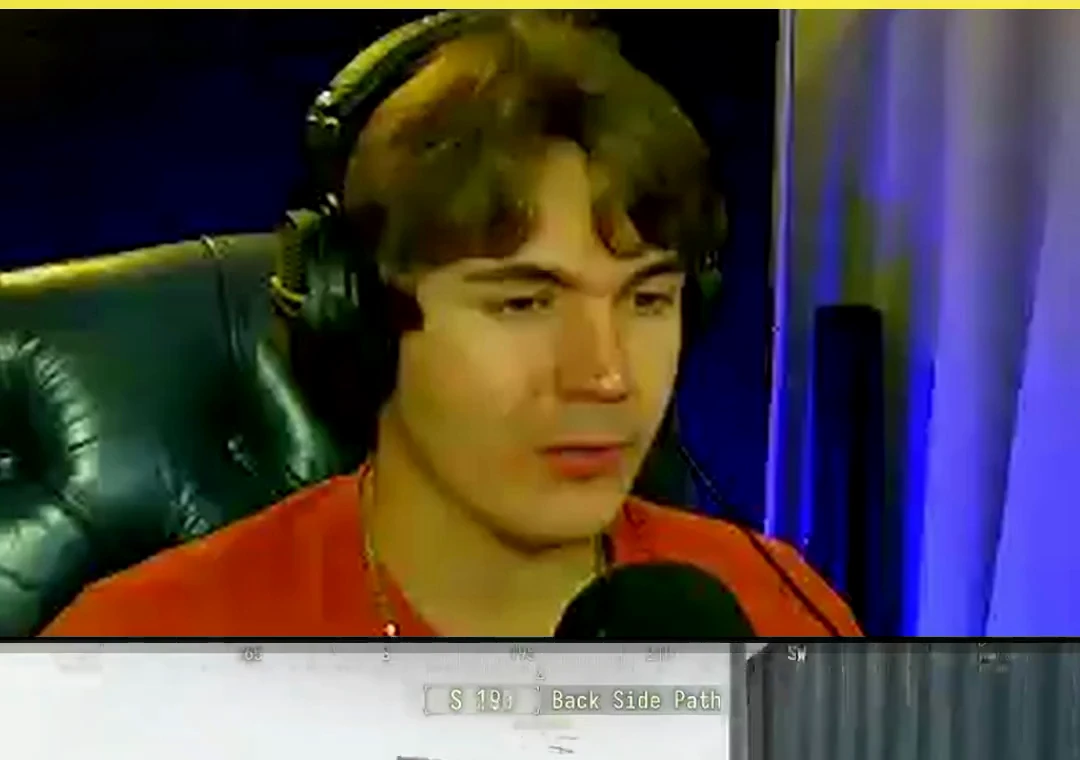
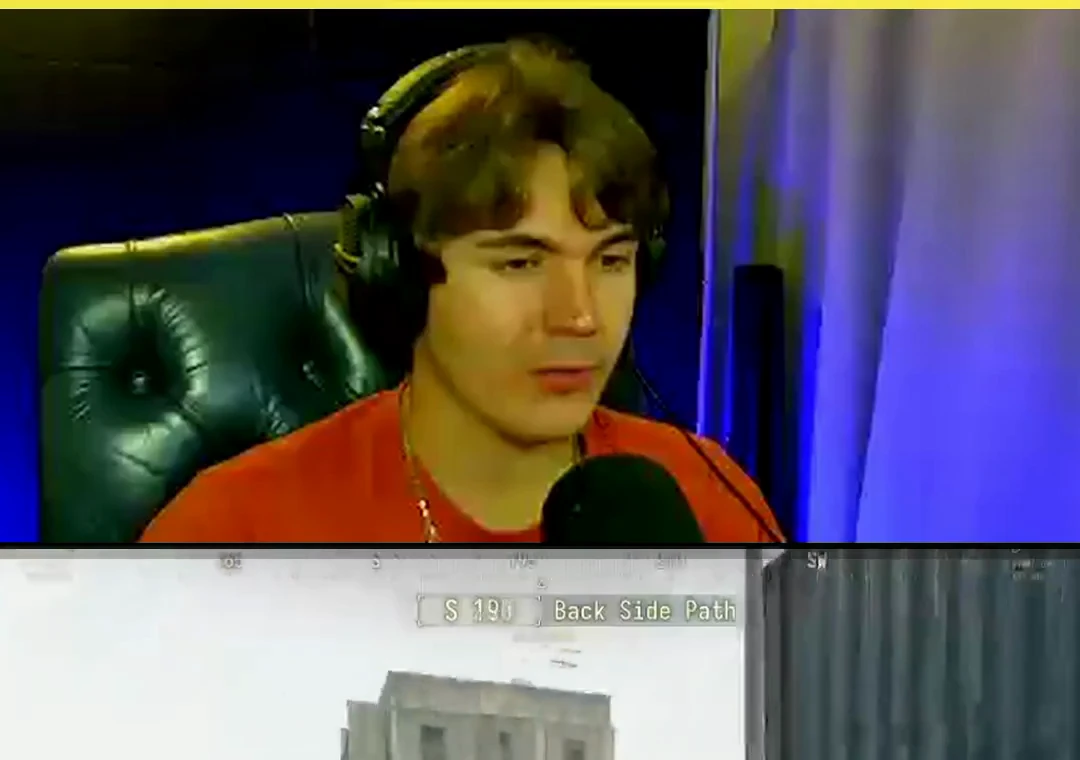 BeforeNow
Up close, same frame, same crop. Your webcam’s own resolution is the ceiling either way; the new panel just stops stretching and over-sharpening it.
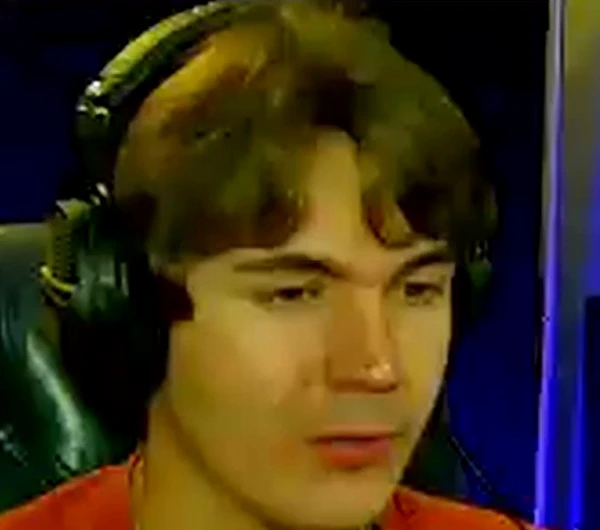
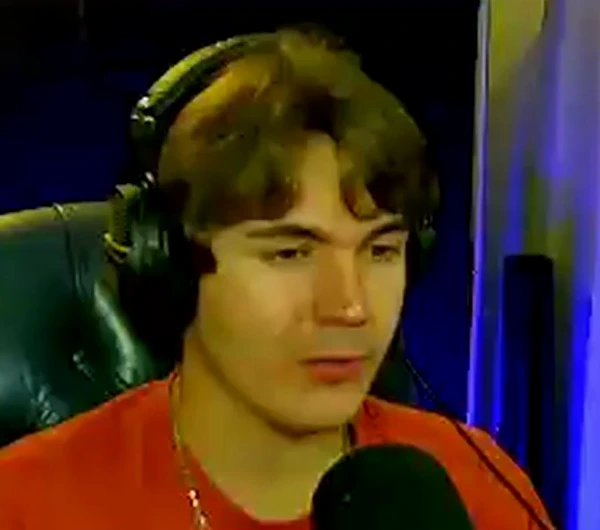
Two more things changed in the same pass. The webcam is now clean and steady: no zoom-ins on your face, no wobble, just you, looking like you. And Shorts are exported at a higher quality, so the finished file holds up better after TikTok and YouTube have their way with it. Open any Short in the editor and the split sits exactly where ClipBot put it, so your manual edits start from the same layout.
What can I say on stream to make ClipBot clip something?
“Clip it” always worked. Now you’ve got a lot more vocabulary:
Yo, clip the last minute.
→ ClipBot keeps the 60 seconds before you said it, cut on a natural pause.
| Say this on stream | What ClipBot keeps |
|---|---|
| “Clip it”, “clip that”, “someone clip that”… | The moment you’re reacting to. Built in, always on. |
| “Clip the last minute” | The minute before you said it. |
| “Clip the last 30 seconds” | The 30 seconds before you said it. Any length from 10 seconds to 3 minutes works. |
| “Clip that story” | The story you just finished telling, from where it started, up to 3 minutes. |
| Your own phrase, like “hell yeah” | The moment, every time you say it. |
That last one is our favourite. Every streamer has a thing they yell when something pops off. Now that thing is a clip button. Add up to 10 of your own on your dashboard, under Your call phrases:
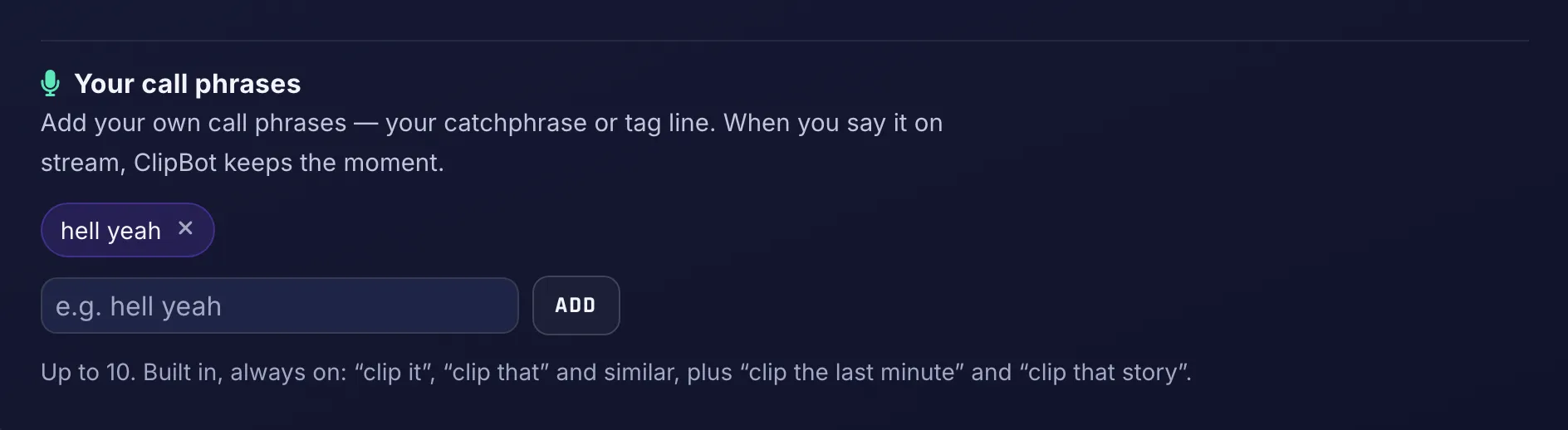
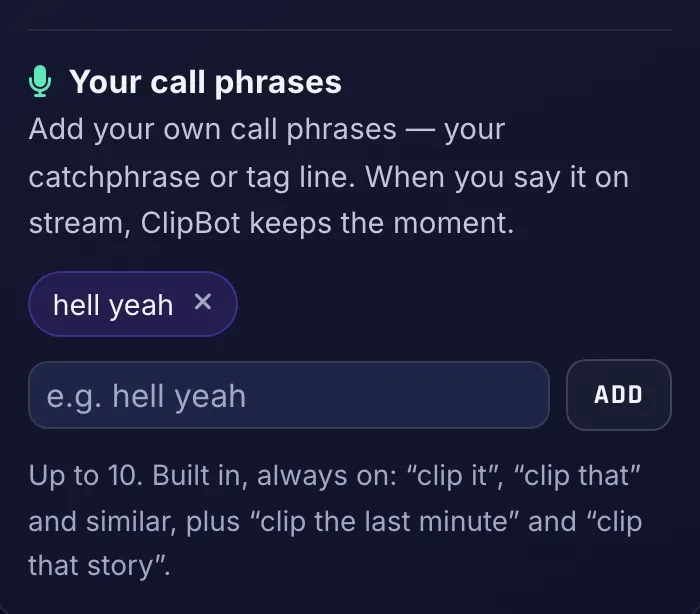
Pick something you only say when it matters. A lone “bro” or “nice” would clip half your stream, so ClipBot won’t take everyday words on their own. And it only listens to your voice: your duo yelling your catchphrase at you doesn’t count. The built-in phrases keep working whatever you add.
What’s new in the Shorts editor?
A sound library that actually has the sound you want
The editor went from 39 sounds to 143. Banjo twang for your cowboy moment, an angry chicken for the whiff, a sad trombone for the team wipe. Tap a theme to browse, or just search for what you’re thinking (“redneck”, “fail”, “boom”) and it finds it, even if that word isn’t in the name.
- Reactions32
- Country28
- Fails27
- Cartoon26
- Animals25
- Hype18
- Gaming16
- Stings16
- Laughs13
- Vehicles12
- Horror10
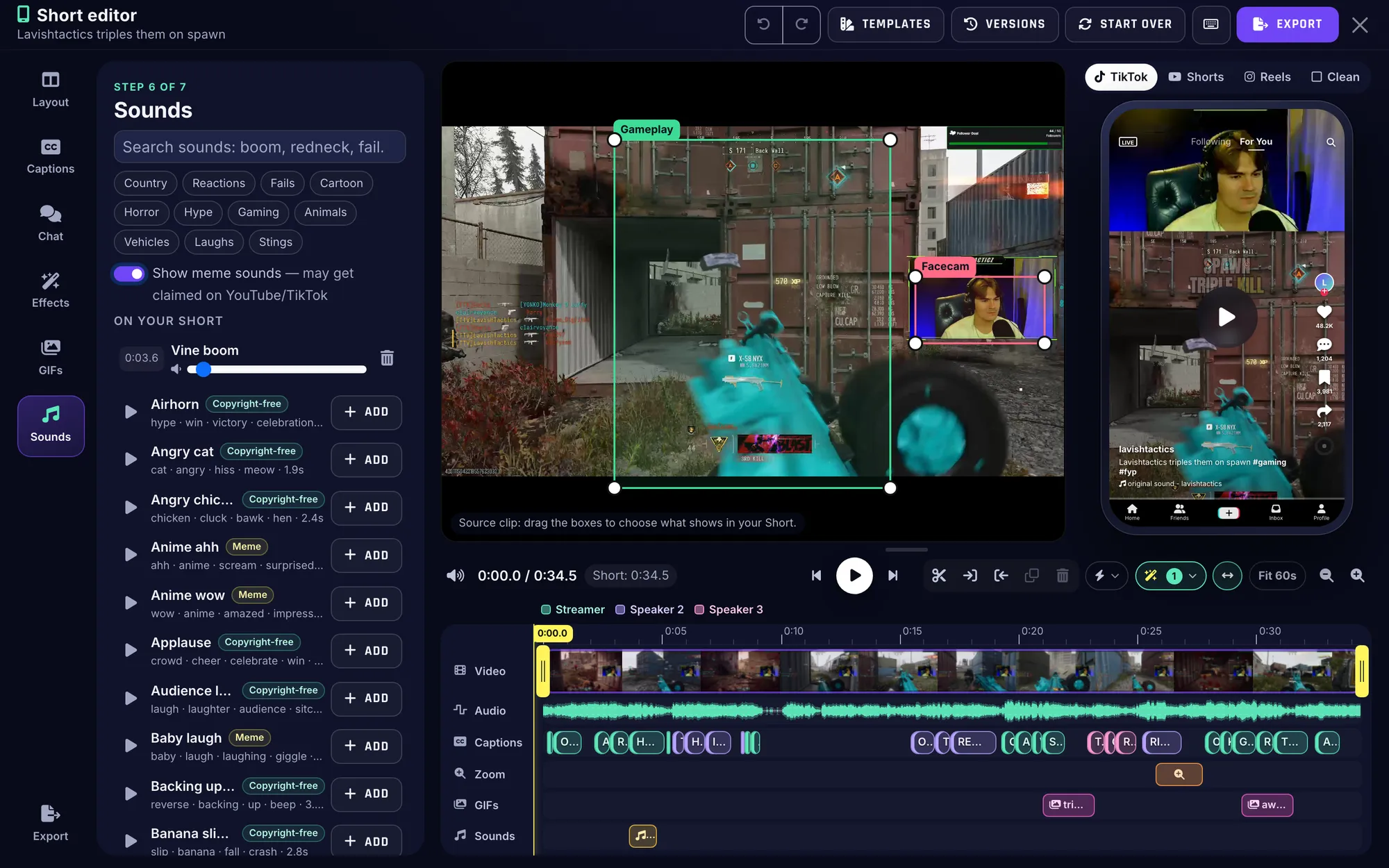
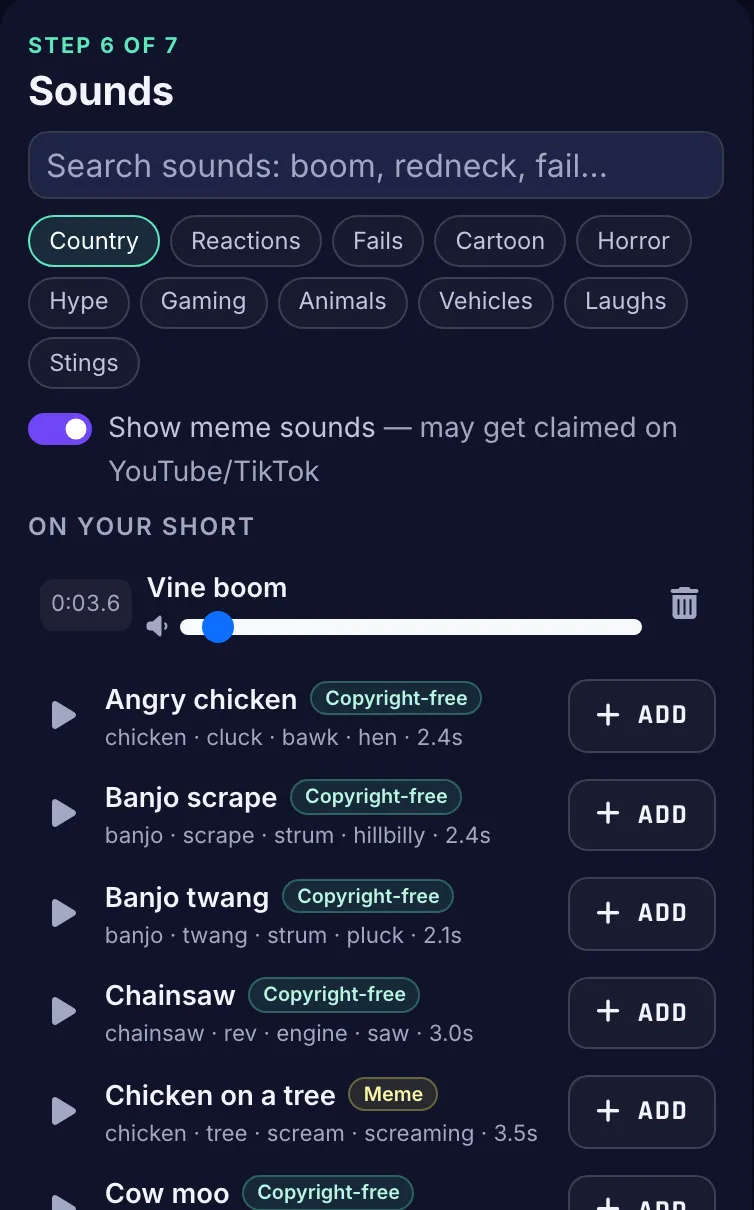
Every sound wears a badge. Copyright-free means post it anywhere, no worries: that’s 122 of them. Meme means it’s the sound everyone knows, and it may get claimed on YouTube or TikTok. Meme sounds stay hidden until you flip Show meme sounds, and the editor remembers your choice. Your call.
November 7, 2026. A sound can sit in more than one theme. Total: 143 sounds (122 copyright-free, 21 meme).
GIFs, faster
Open the GIFs step and there’s a row of popular reaction GIFs waiting before you type anything. Search starts as you type, and searches you’ve already run come back instantly. Less waiting, more “awkward silence” GIF exactly where it belongs.
Where did the broadcasts go on streamer profiles?
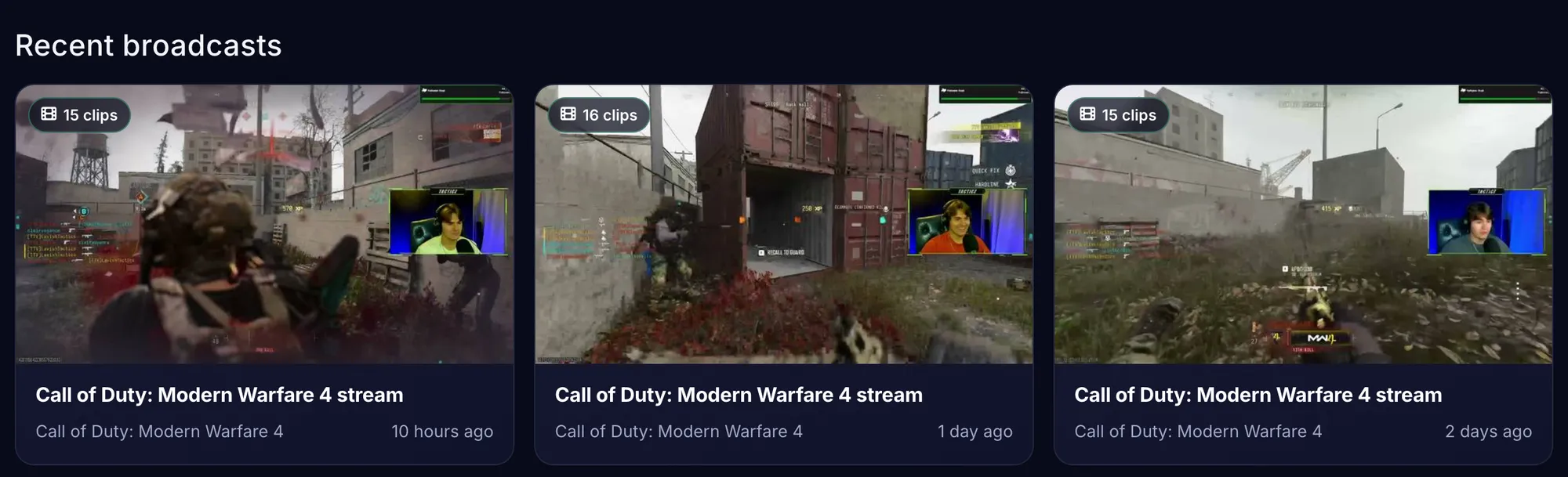
Up. Every streamer profile now shows Recent broadcasts above Top clips, so last night’s stream is the first thing you see when you land on someone’s page. Missed a stream? One tap and you’re in its clips, Shorts and timeline.
Is there a ClipBot app for iPhone?
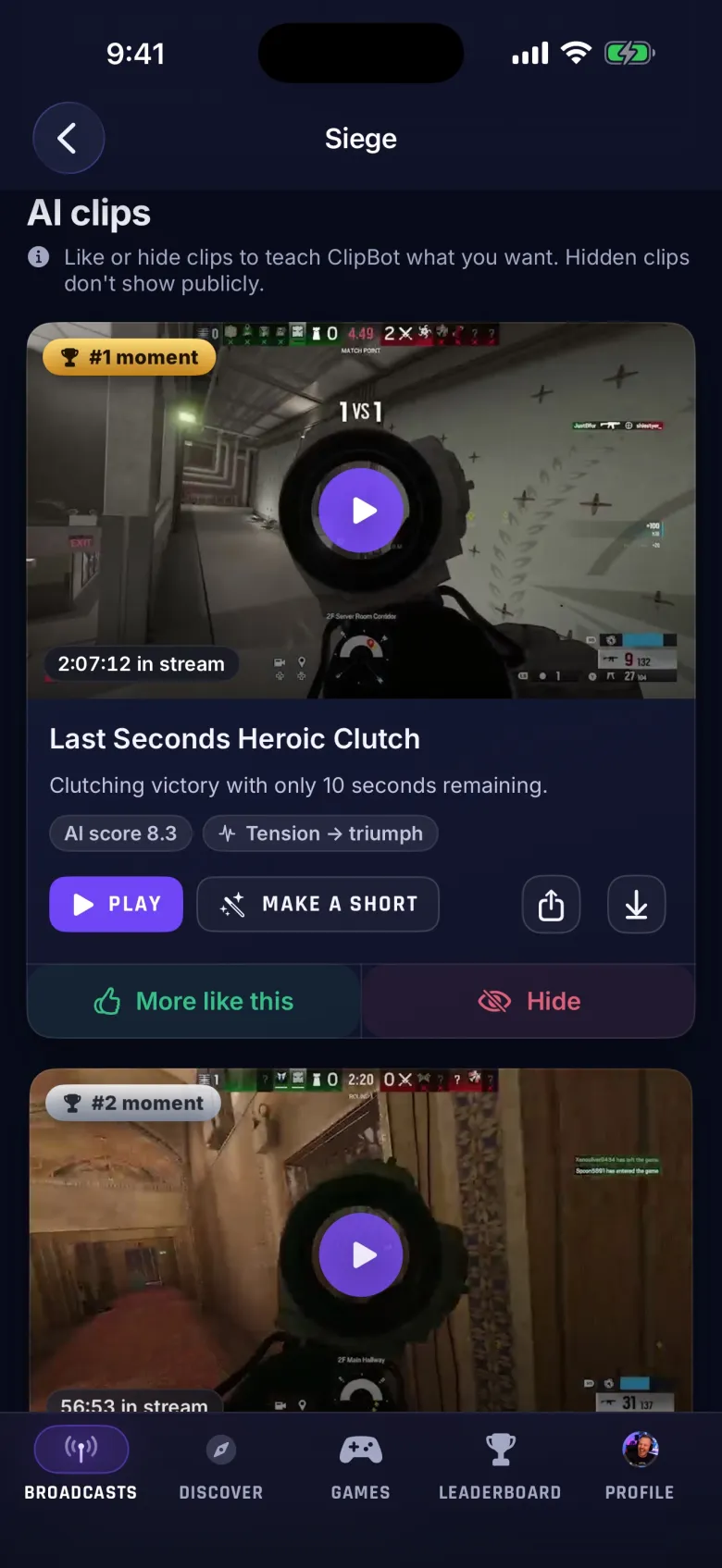
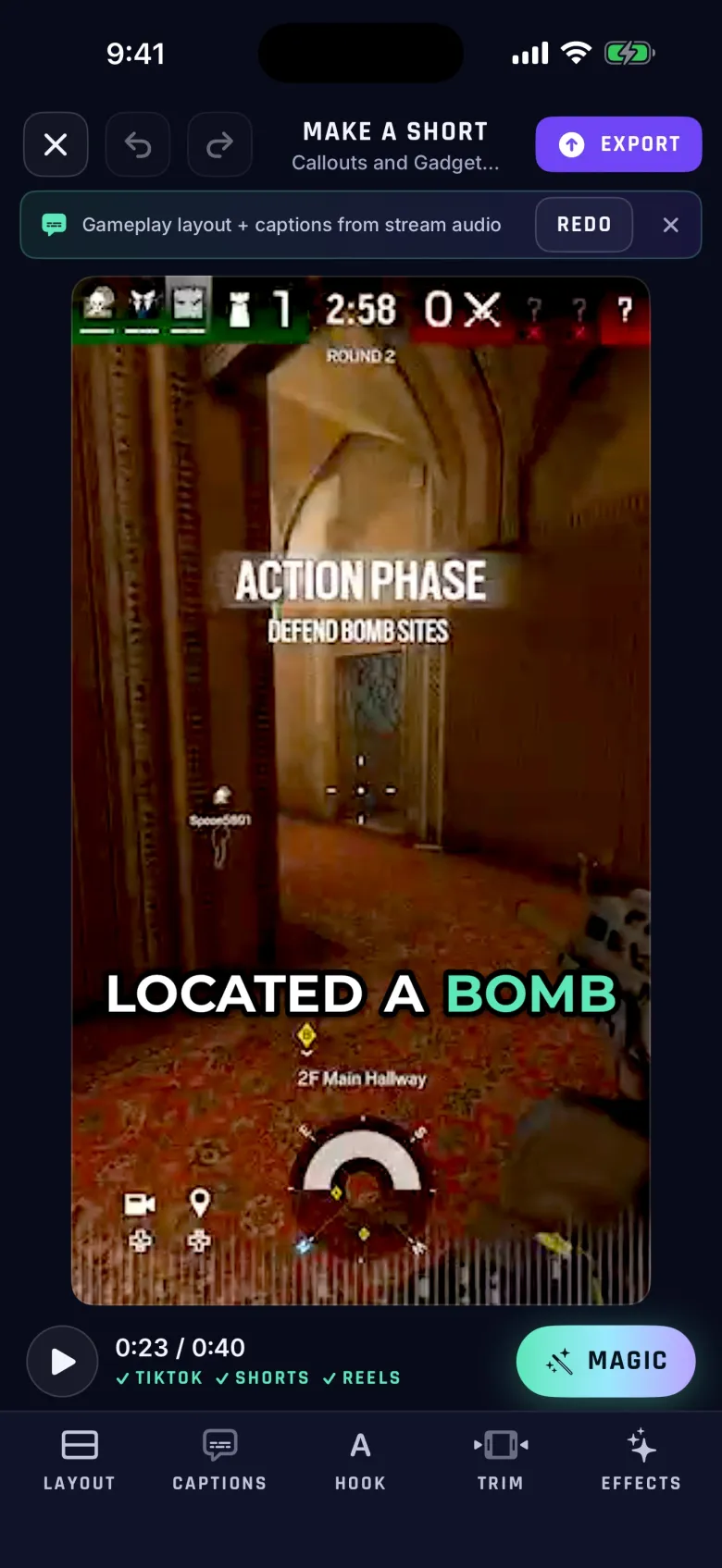
Yes, and it’s out. ClipBot: Stream Clips & Shorts is on the App Store. Push alerts the second your clips are ready, your ranked moments, the full Shorts editor and the whole community, built natively for iPhone. Sign in with Twitch and your clips are already there.
Still no Android app. The website works great on every phone in the meantime.
Want the head-to-head?
This was the what’s-new edition. If you want to know how ClipBot’s picks stack up against other AI clipping tools, we blind-tested it against six of them. Spoiler: the first round did not go our way, and we wrote up exactly why.
Sign in with Twitch, add your catchphrase under Your call phrases, and go stream. Next time you yell it, that’s a clip. GG.